
On-demand events start when enough players are waiting, not at a set time. Each on-demand event is a queue: players join it from the TopDeck app, a pod forms once the line is long enough, and your staff launch the pod as its own event. Launched pods are listed in On-demand only, not in Events or on the public schedule.
Convention staff at Judge or above can see and run the board. Players join and check in from the TopDeck app.
Create an on-demand event
- In On-demand, select New on-demand event.
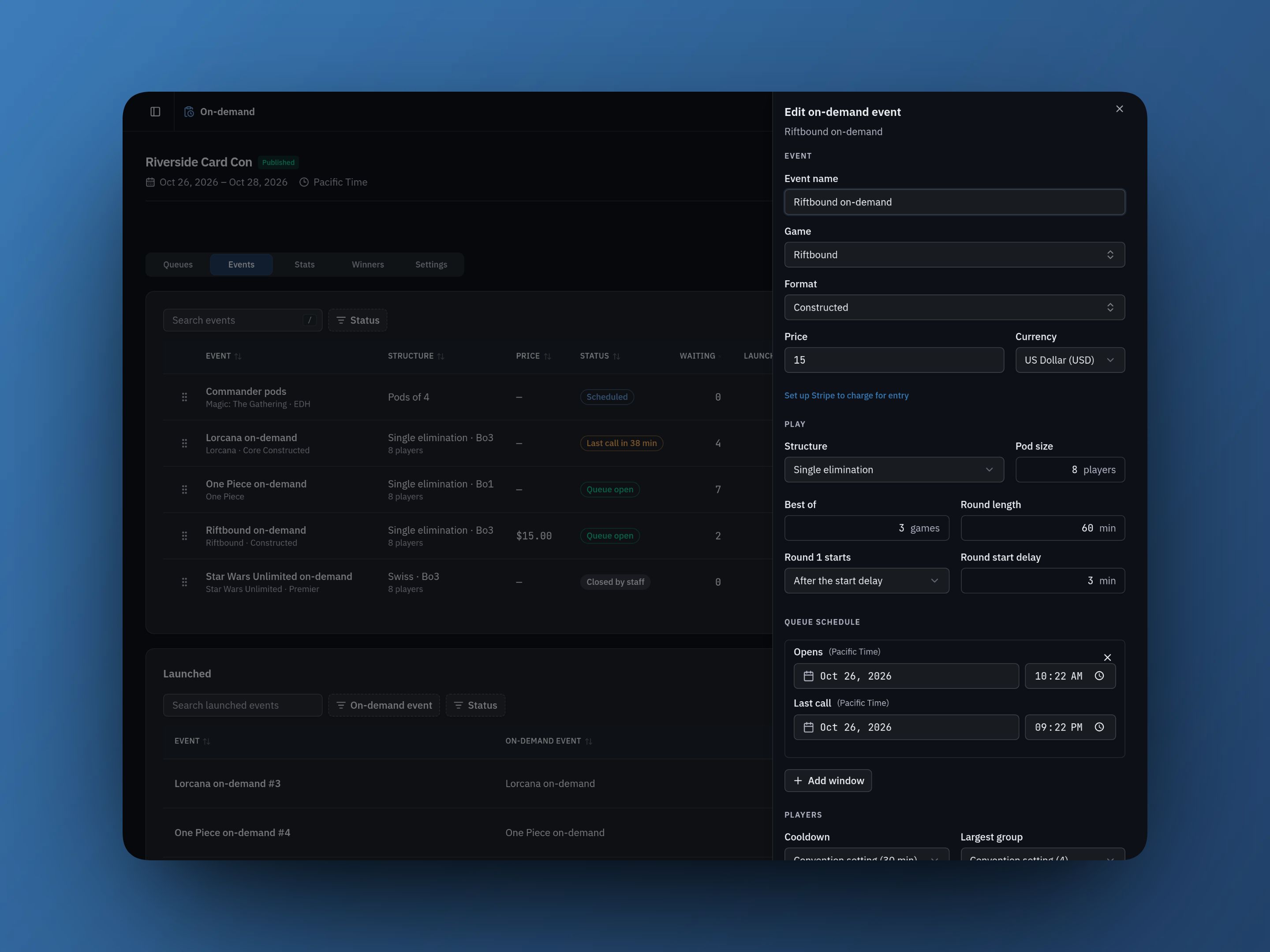
- Set the Game, Format, Price, and Pod size, then pick a Structure: Single elimination or Swiss for 1v1, Single elimination or Swiss pods for pod formats. Best of, Round length, and Round start delay work as they do for any event.
- Under Queue schedule, add a window for each day with when it Opens and its Last call.
At last call the queue stops taking new players. Everyone already in line keeps their place until the end of that day, so pods keep forming. Open now and Close now override the schedule; Close now after last call ends the line.
Round 1 starts is After the start delay by default. Choose When staff start it if players need to be seated first. For draft and sealed formats, Starts with adds a Draft Round or Deck building round that staff start and end. Cooldown and Largest group override the convention settings for one event.
A paid queue charges through the convention owner's Stripe account, so connect Stripe before you set a price.
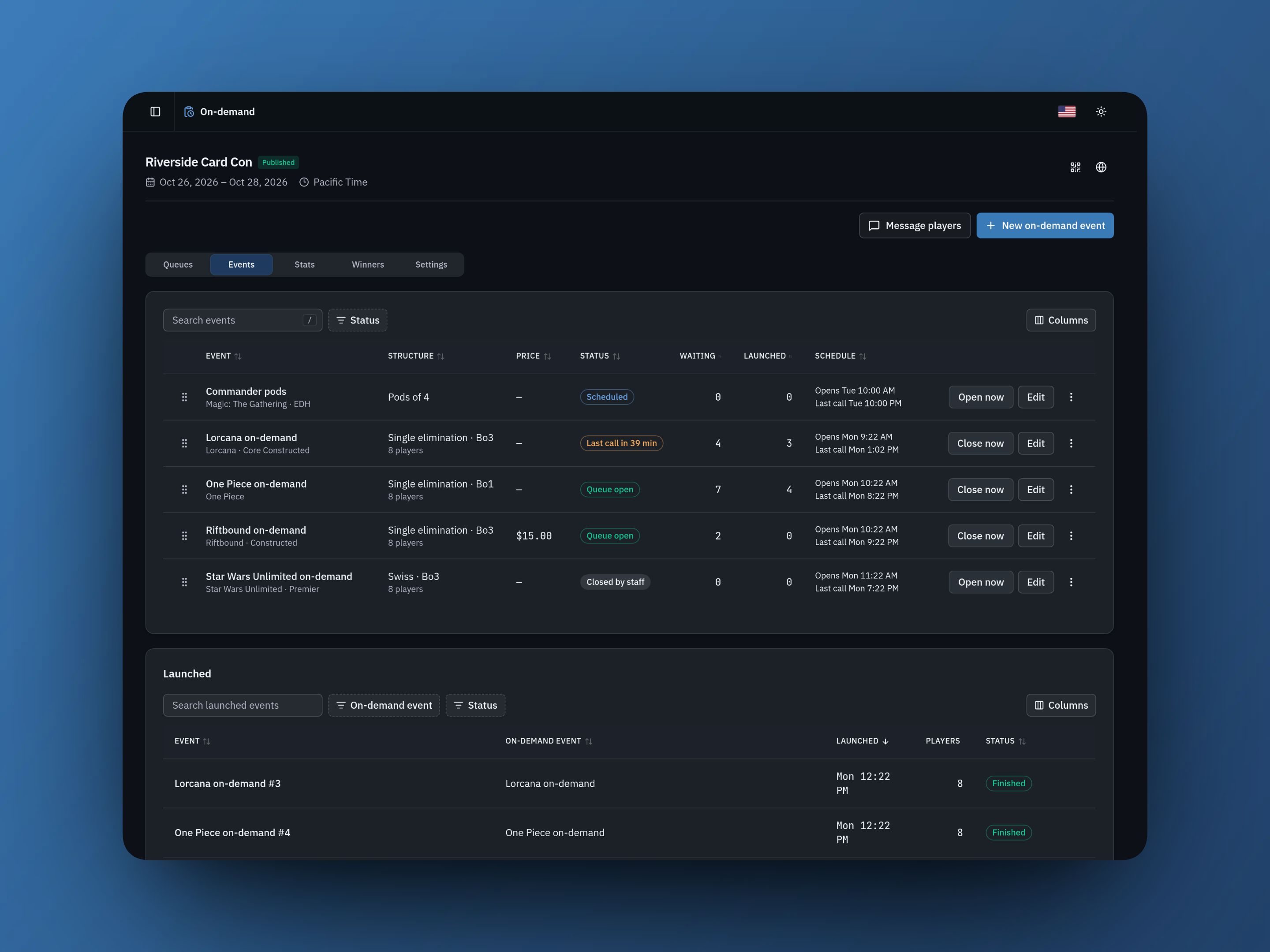
Events lists every on-demand event with its status, how many players are waiting, and its schedule. Drag the rows to set the order the queues appear in. Launched lists every pod that has been launched, with its status.
How players join
Players open the convention in the TopDeck app and go to its On-demand tab. They can join several queues at once.
A paid queue puts a Temporary hold on the player's card instead of charging it. One hold covers every queue they're in, sized for the most expensive one. When their pod launches they're charged for that event, and the rest of the hold is released. If they leave, are removed, or the queue closes, the hold is released and nothing is charged.
With Queue with friends, a group joins as one unit and is called into the same pod.
Run the board
Each queue has three columns: Queue, Check-in, and Launchpad. Pods that are playing are listed under Running.
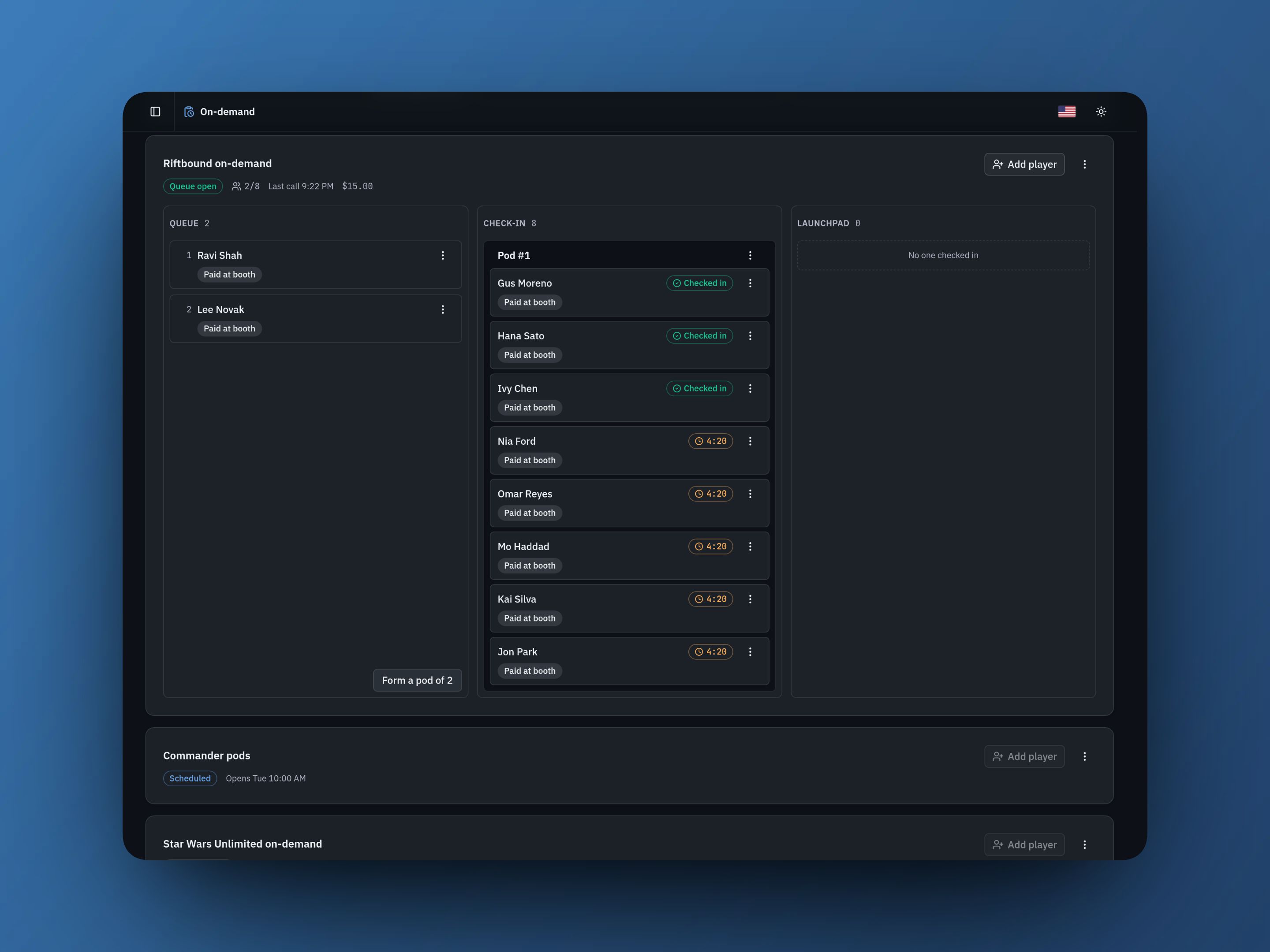
- A pod forms on its own when enough players are waiting; the queue shows Next pod forms at N waiting. For a short pod, use Form a pod of N.
- Send check-in calls the pod. Each player gets a push and has the Time to answer to accept.
- A decline, I can't make it, or no answer sends that player to the back of the line, and the next player in line is called into the seat. After Declines before removal, the player is removed from the queue.
- When everyone has checked in, the pod moves to Launchpad. Move to launchpad in the pod's ⋮ menu moves it early; players who haven't answered go back to the top of the queue.
- Enter a first table number in the Table box if you want one, then select Launch. The event is created, round 1 is paired, players are charged, and each player's phone shows their table.
- Cancel pod sends its players back to the front of the line.
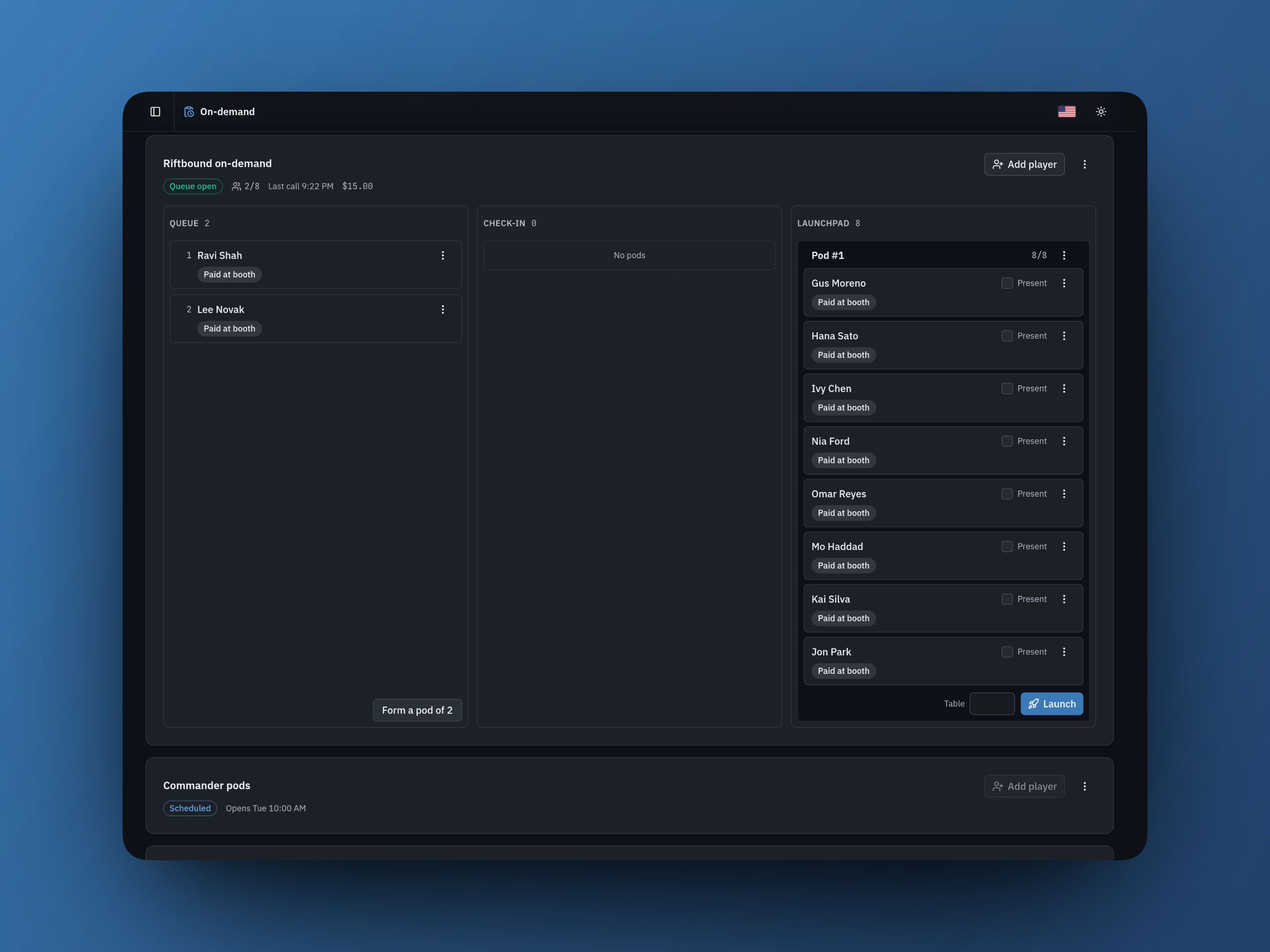
On a desktop, drag players between columns and queues. Every move is also in the player's ⋮ menu: Move to top, Move to bottom, Move to another queue, Add to pod, Check in, Message, and Remove from queue.
For walk-ups, Add player finds a player by username. Tick Paid at booth if they paid at the desk. They still answer the check-in in the app.
Launched pods run on Autopilot. A Running pod's ⋮ menu has Move tables, End event, and Open manager. If round 1 waits for staff, the pod shows Start round 1; a prep round shows Start draft and End draft, or Start deck building and End deck building.
Play new-pod alerts sounds an alert on the board each time a pod forms.
A player's other queues
A player is only called for one pod at a time. When they accept, their place in every other queue is held. If that pod is cancelled, they go back to the same places. When it launches, they leave their other queues.
Queue again
When a player is knocked out, and again when their event ends, the app asks Good game. Queue again? with their previous queues ticked. One tap puts them back at the end of each line. During a cooldown the button reads Queue me at a time, and the app joins them when the cooldown ends.
Message players
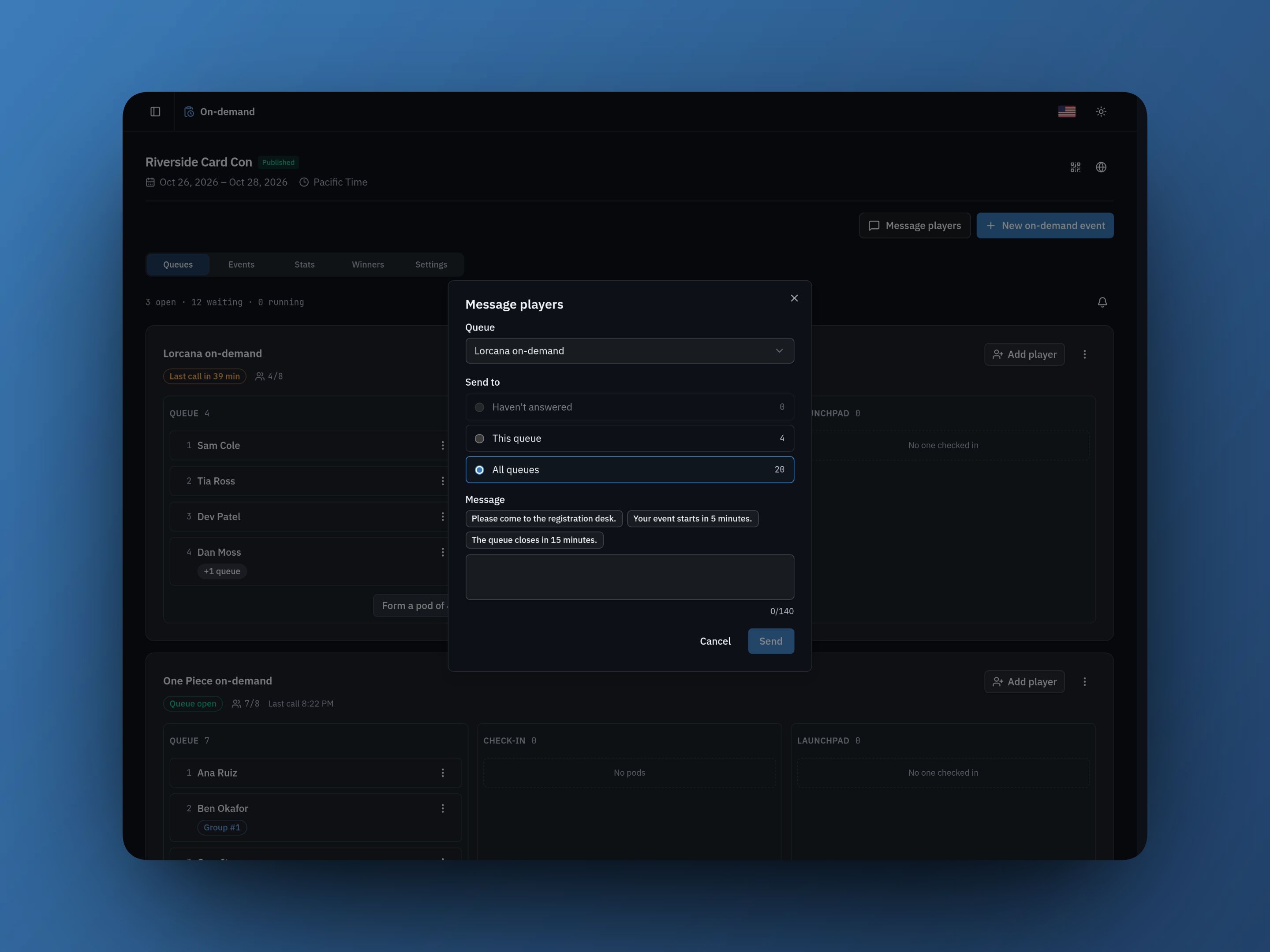
Message players sends a push of up to 140 characters to This queue, a pod's launchpad, Haven't answered (players who haven't answered their check-in), or All queues. To message one player, use Message in their ⋮ menu.
Settings
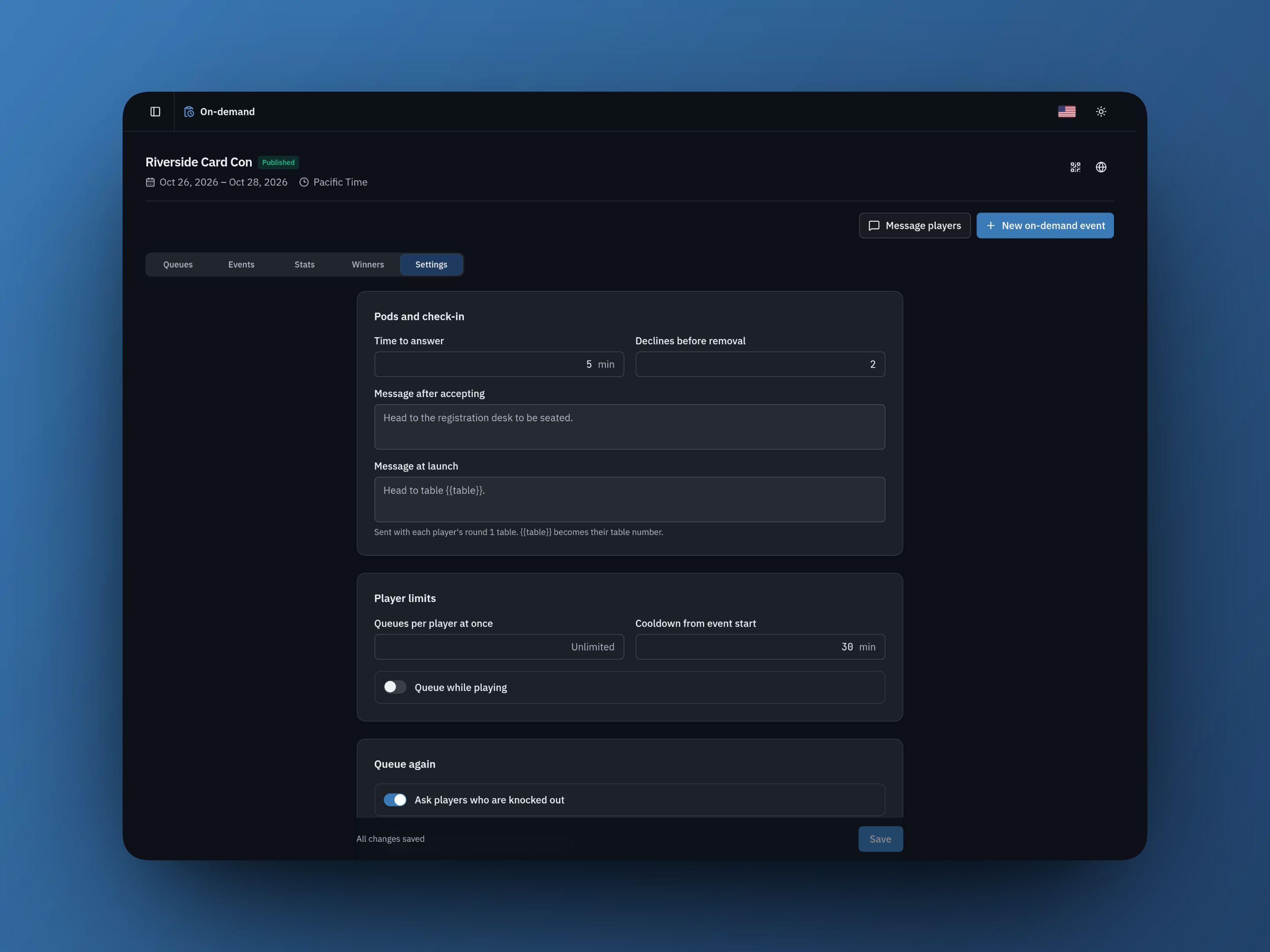
- Pods and check-in: Time to answer (5 minutes by default), Declines before removal (2 by default), Message after accepting, and Message at launch. In the launch message, {table} becomes each player's table number.
- Player limits: Queues per player at once, Cooldown from event start, and Queue while playing. With Queue while playing off, a player in an event can't join a queue until it ends.
- Queue again: Ask players who are knocked out and Ask everyone when the event ends.
- Groups: Let friends queue as a group and Largest group.
- Payments: Let players save a card for one-tap requeues. Stripe keeps the card on the convention owner's account.
Stats
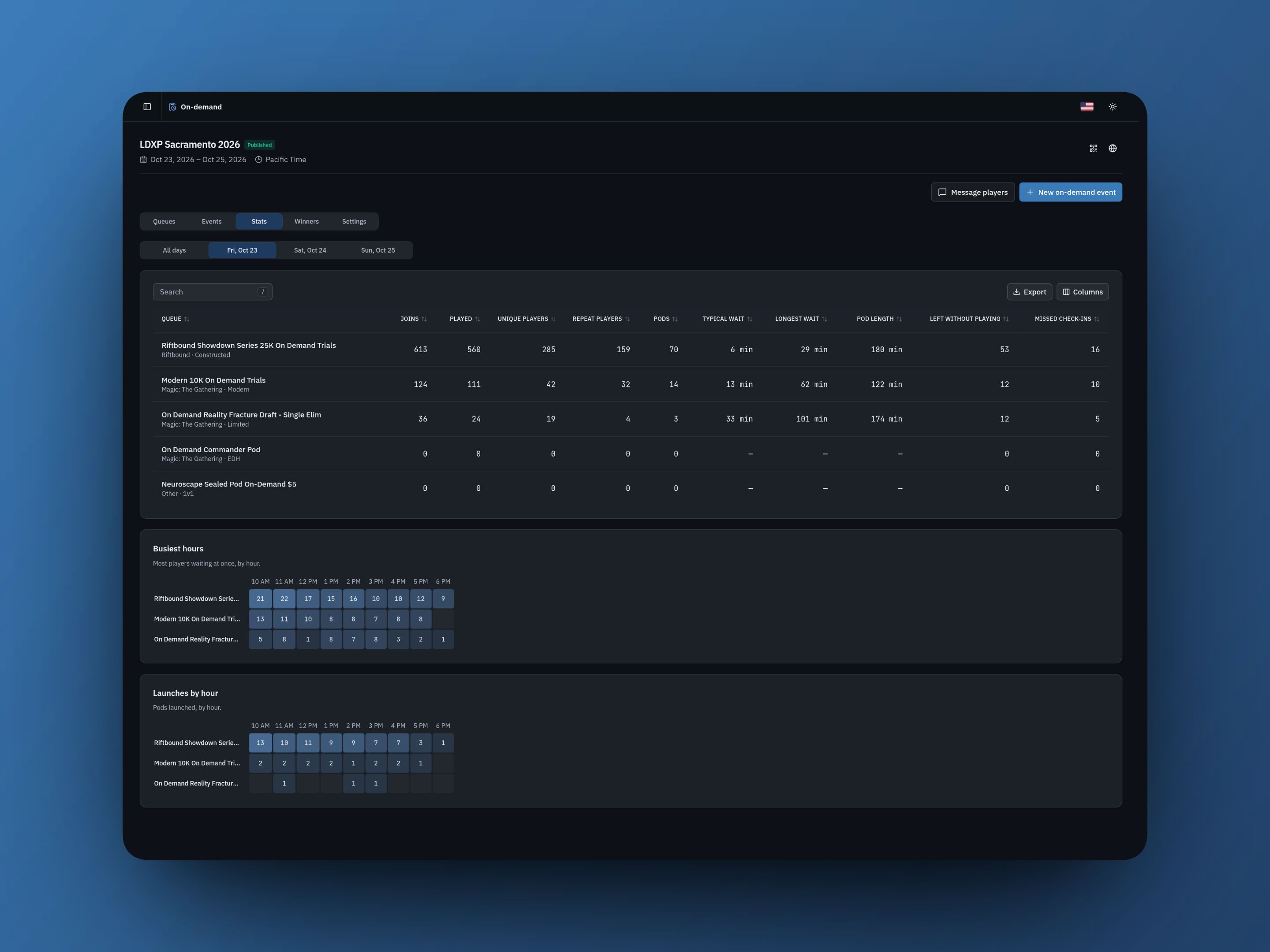
Pick All days or one day. For each queue, Stats shows Joins, Played, Unique players, Repeat players, Pods, Typical wait, Longest wait, Pod length, Left without playing, and Missed check-ins. Typical wait is the median time from joining to being seated; Pod length runs from launch until the event ends.
Busiest hours shows the longest each line got in each hour, and Launches by hour shows how many pods launched. Export downloads the table as a CSV.
Winners
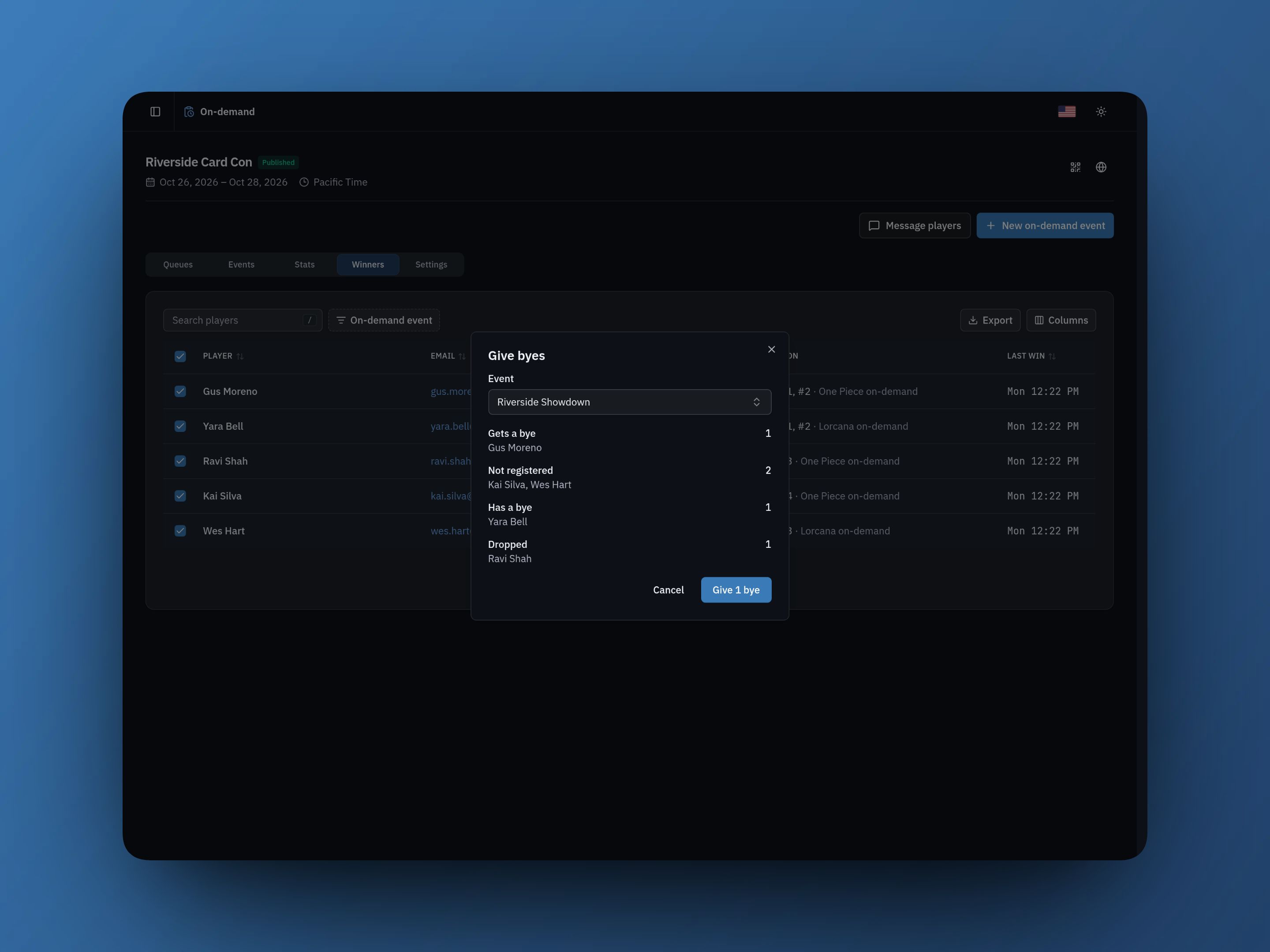
Winners lists everyone who won an on-demand pod, with their wins, pods played, and last win. If your on-demand events are trials, Give byes picks your main event and gives a bye to every winner registered for it. Byes can only be given before that event's round 1, and giving them takes head judge or above in that event.