

A convention groups many events into one operational workspace and one public program. It has its own timezone, staff, schedule, player directory, and analytics.
The sidebar splits into OPERATIONS (Events, Schedule, On-demand) and MANAGE (Event Page, Analytics, Players, Staff). The workspace opens on Events.
Create a convention
- Organizer Dashboard → Create → Convention.
- Enter the name and the start and end dates.
- Open it from Circuits & conventions.
- Set the Timezone in Event Page before you build the schedule.
The timezone matters more than it sounds. Convention event times are anchored to it, so a staff member working from another timezone types the venue's local time and the published schedule does not move.
Schedule
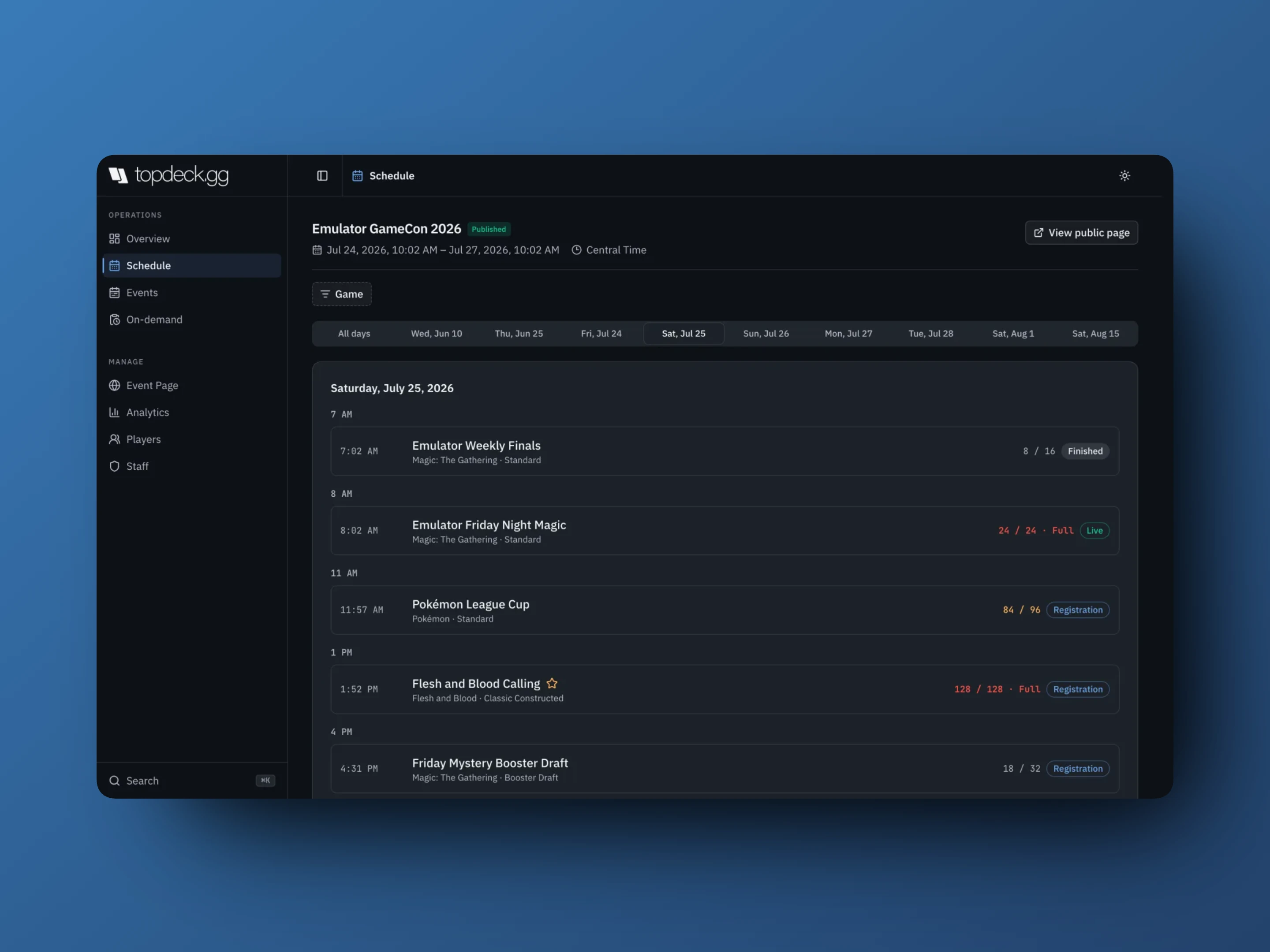
Use it to find the gaps and overlaps: two flagship events on top of each other, an empty Sunday afternoon, an event with Time not set still sitting under Unscheduled. Filter by Game to check one game's track.
Events
The events table is where most editing happens. Columns are name, date, game, format, filled, price, and status.
When upcoming events are not published, missing public details, or in a different timezone from the convention's, a warning strip above the table counts them — select it to narrow the table to just those. Work that list before the doors open; it is the things that will confuse attendees.
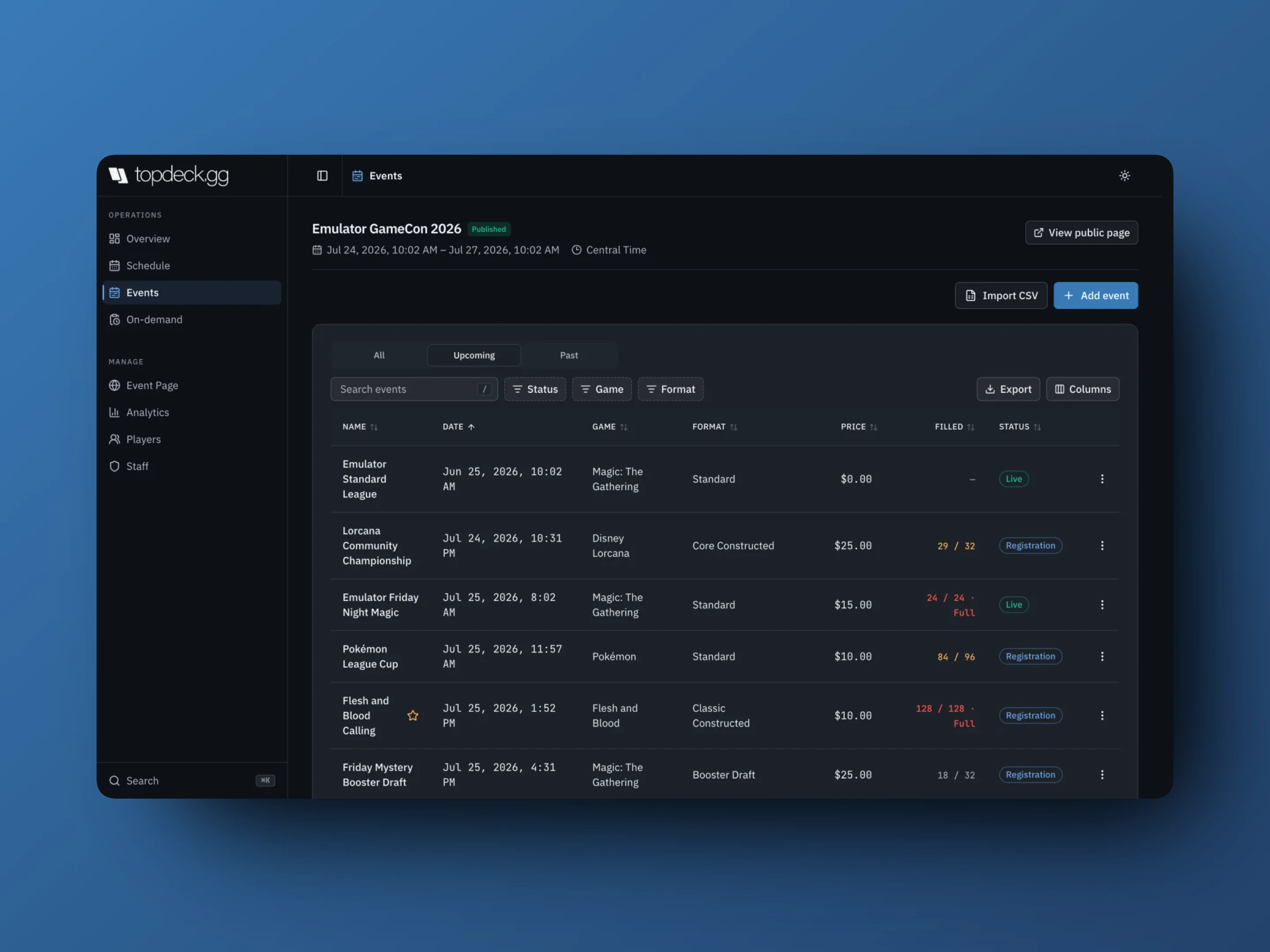
- Add event creates a new event in the convention or attaches an existing one.
- Import CSV builds a whole schedule at once. Download sample CSV shows the shape; dates are read in the convention's timezone, so set that first. The dialog validates the file and reports what it found before importing anything.
- Quick edit opens a side panel for schedule, game, format, capacity, and pricing, with Save & next to walk the whole program without leaving the table. Game and format lock once a round exists.
- Make headliner stars an event on the public program.
- Clone duplicates an event. Recheck its payment settings afterwards.
- Open manager goes to the full event workspace, which stays the place for roster, rounds, standings, judge tools, and detailed configuration.
- Remove from Convention detaches the event; the tournament and its data are kept.
Players
Players deduplicates people across the whole convention: how many events each attended, over how many days, which games, spend, and penalties.
Registration method tells you where a registration came from: Self, Organizer-added, or Waitlist / legacy. Open a player to see all their convention registrations; a penalty link opens the right event's Judge Center.
This is the section to use for "who is this person and what else are they in" at the info desk.
Analytics
Registrations and revenue across the program, with Event entries, Unique players, Multi-event players, Seats filled against capacity, and Registration acquisition by method: self registration, organizer-added, or waitlist. Filter by event, game, format, and day.
Event Page
The convention's own public page: name, dates, Timezone, header image, location, and contact email. All of those are required to publish, and the editor names which one is missing.
Use organizer location fills the venue from your store page. Staff preview is how you check an unpublished program, since guests cannot open it. Unpublish takes the public page down without touching the events underneath.
Staff and event assignments
Staff adds people to the convention workspace by email and sets their convention role.
Assign staff to selected events is the one that saves a day of clicking: select events in the table, paste up to 50 TopDeck.gg account emails, pick the Tournament role, and it grants that role across every selected event at once.
Convention permissions control the convention workspace. What a person can do inside an event is still their event role. See Staff roles and permissions.
On-demand
Reserved for queue-based side events. Where your workspace shows it as planned, keep running those events through Events and each event's Rounds until the queue tools ship.