

The organizer workspace is home for everything that spans events. Open it from Host in the main navigation, or go to /tournaments/dashboard.
The sidebar groups sections as Events, Community, Billing, Growth, and Resources.
Dashboard
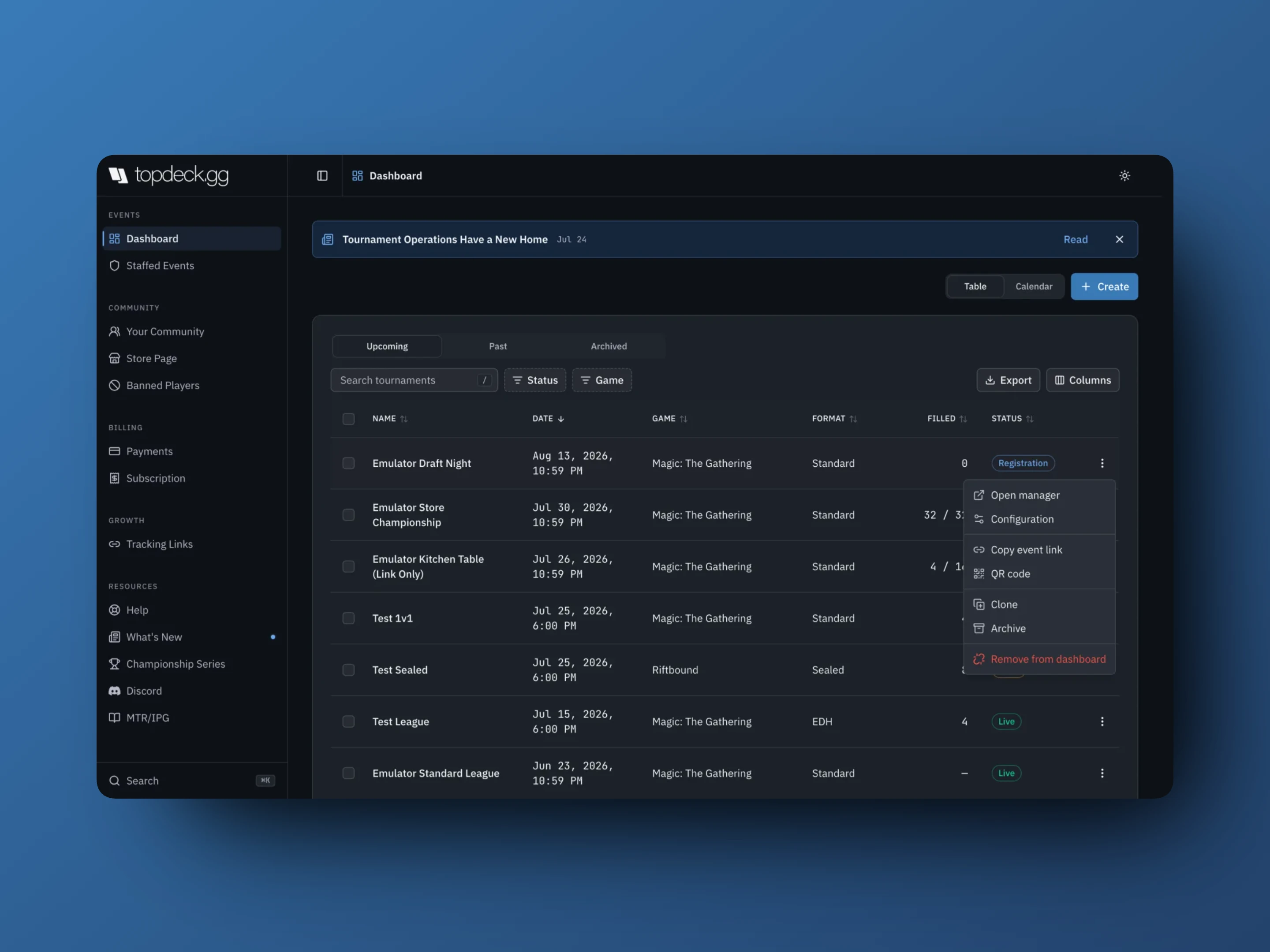
Your tournaments and leagues, as a table or a calendar.
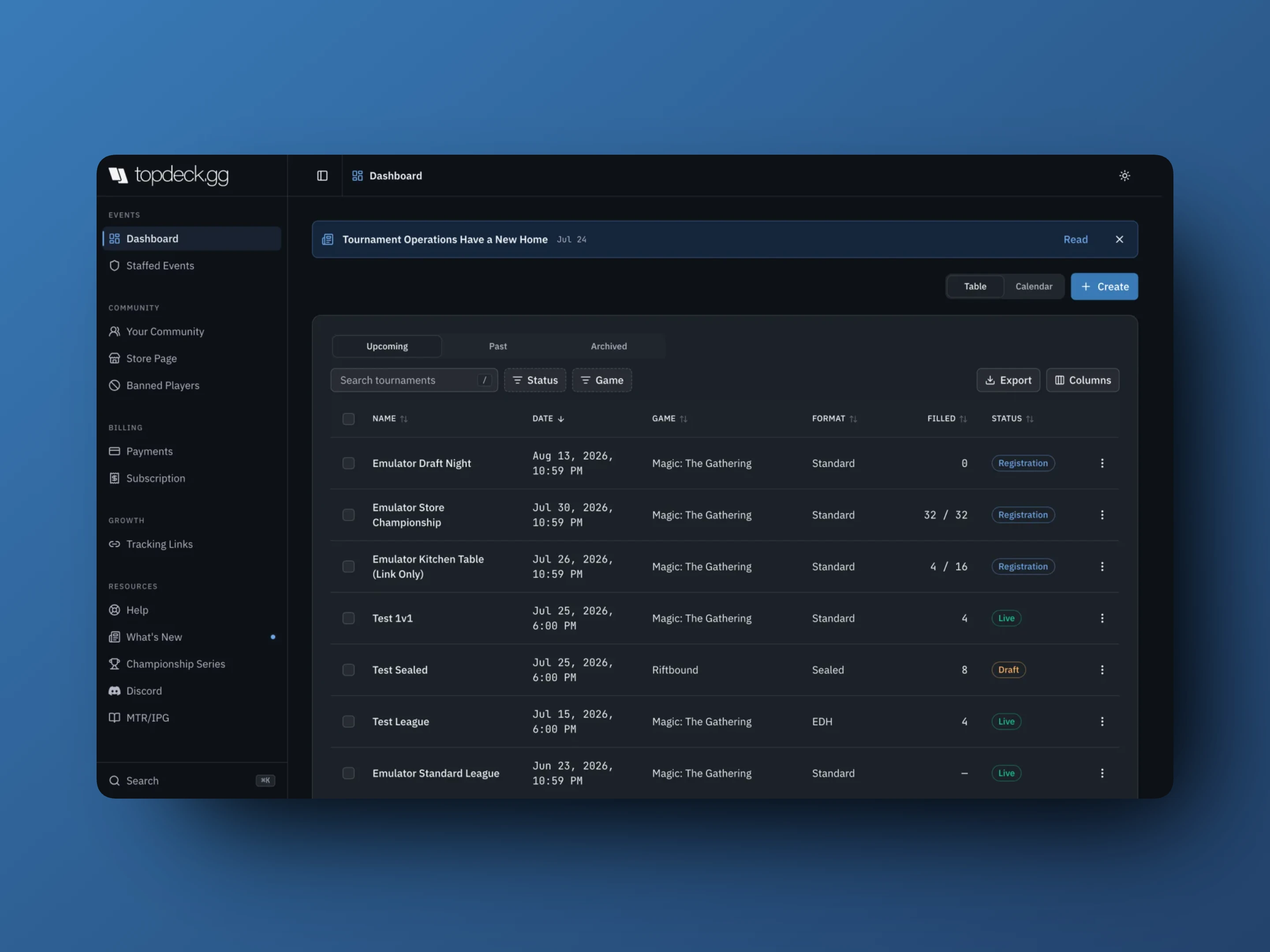
- Upcoming, Past, and Archived views.
- Search tournaments, or filter by Status and Game.
- Status reads Draft, Registration, Live, or Finished.
- Columns picks what the table shows; Export downloads the current view.
- Table / Calendar switches how the list is drawn. Your view, filters, and columns are remembered in the browser.
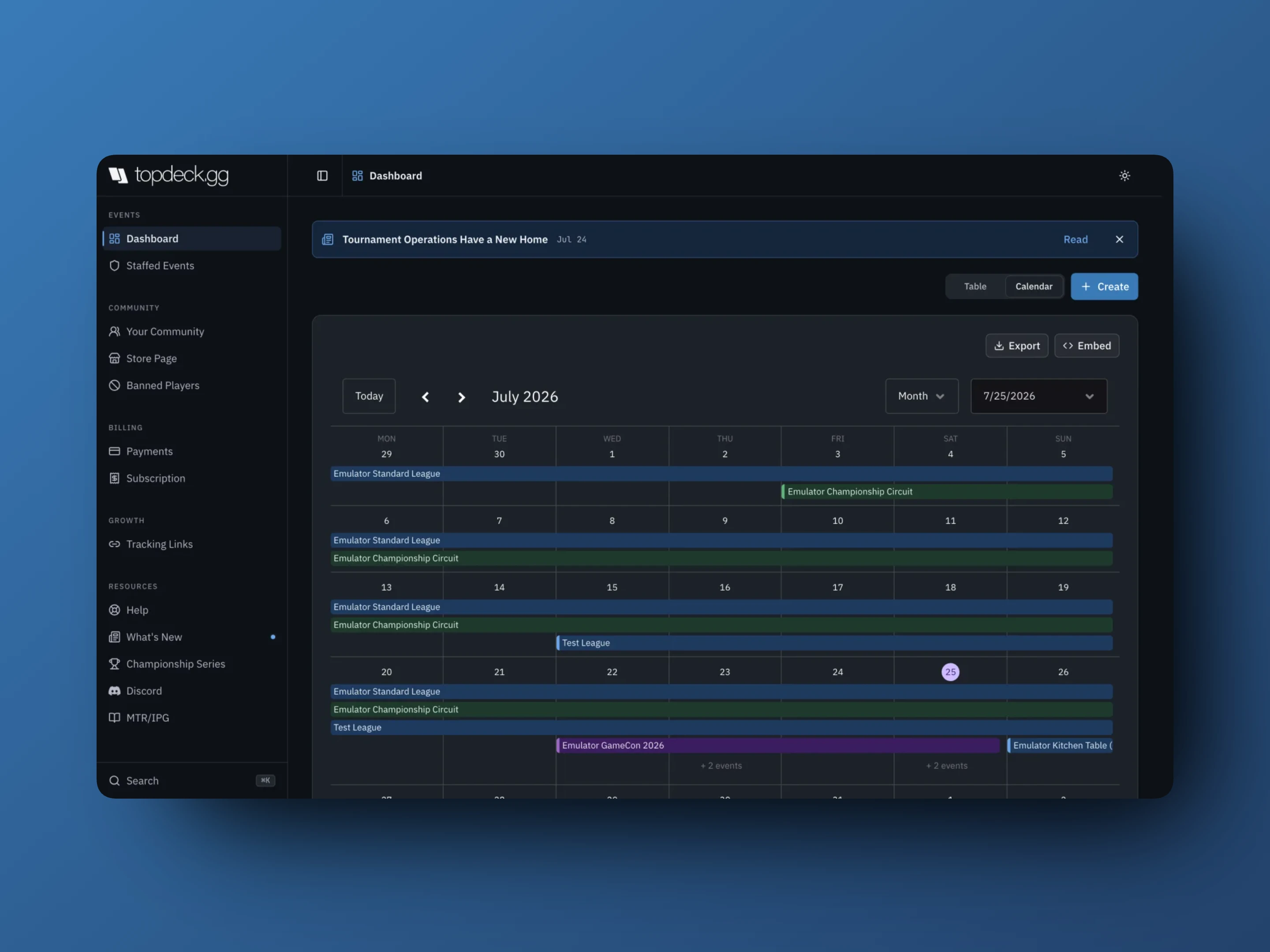
Each row's ⋮ menu holds:
- Open manager opens the event workspace
- Event page and Bracket, the public views, when they exist
- Configuration
- Copy event link and QR code
- Clone
- Archive / Unarchive
- Remove from dashboard
Selecting the event name opens the manager directly.
Circuits & conventions is a second table below the events, with its own Active and Archived views. Manage opens that program's workspace.
Staffed Events
Events where somebody else gave you a role. This section works without an organizer subscription. It is the whole workspace for a staff-only account.
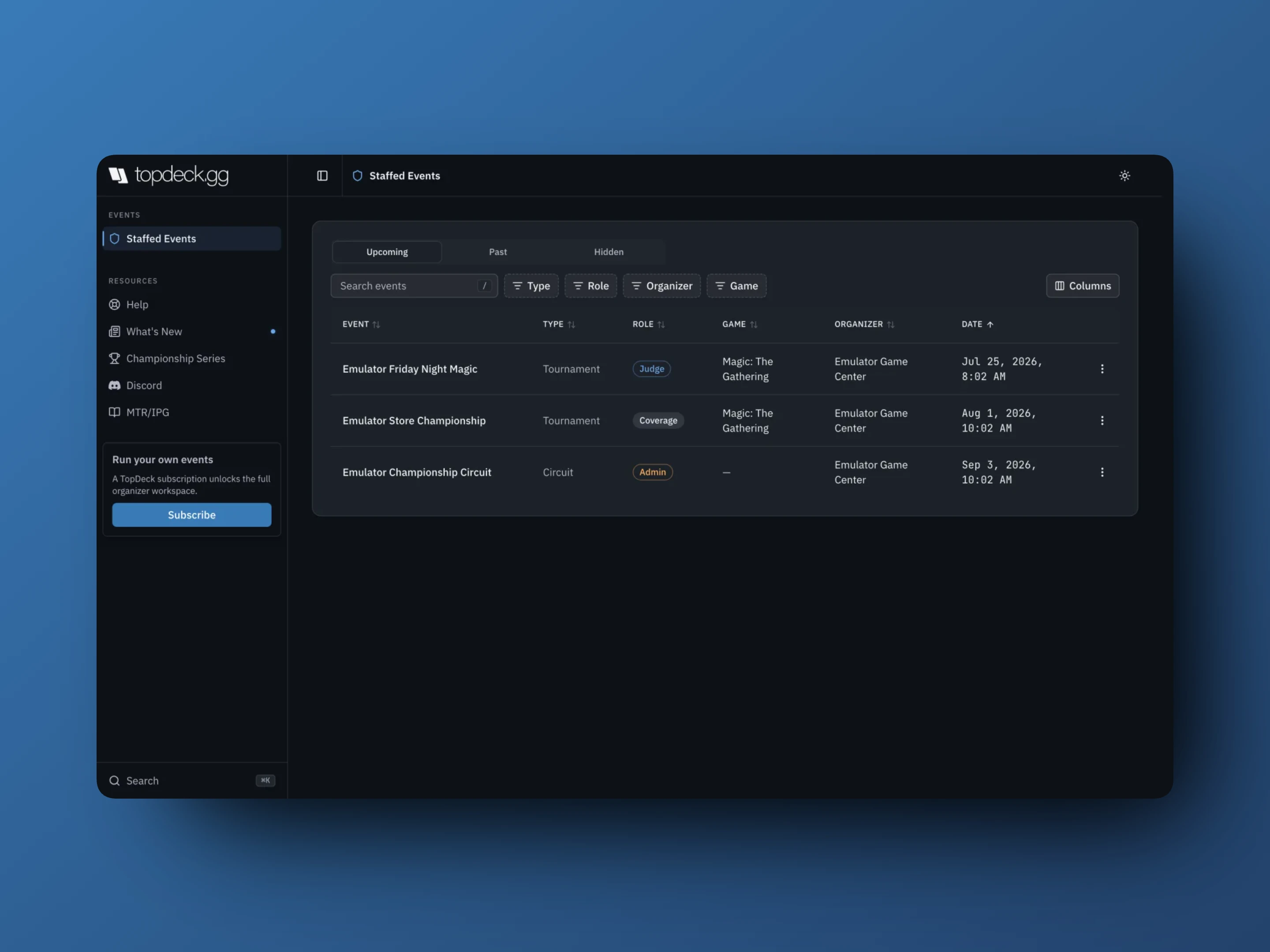
Columns are event, organizer, date, game, format, type, and your Role. Use Upcoming, Past, and Hidden, and Hide event to clear finished work out of the list. Opening an event takes you to the sections your role allows.
Your Community
Everyone who has played in your events, combined into one searchable list.
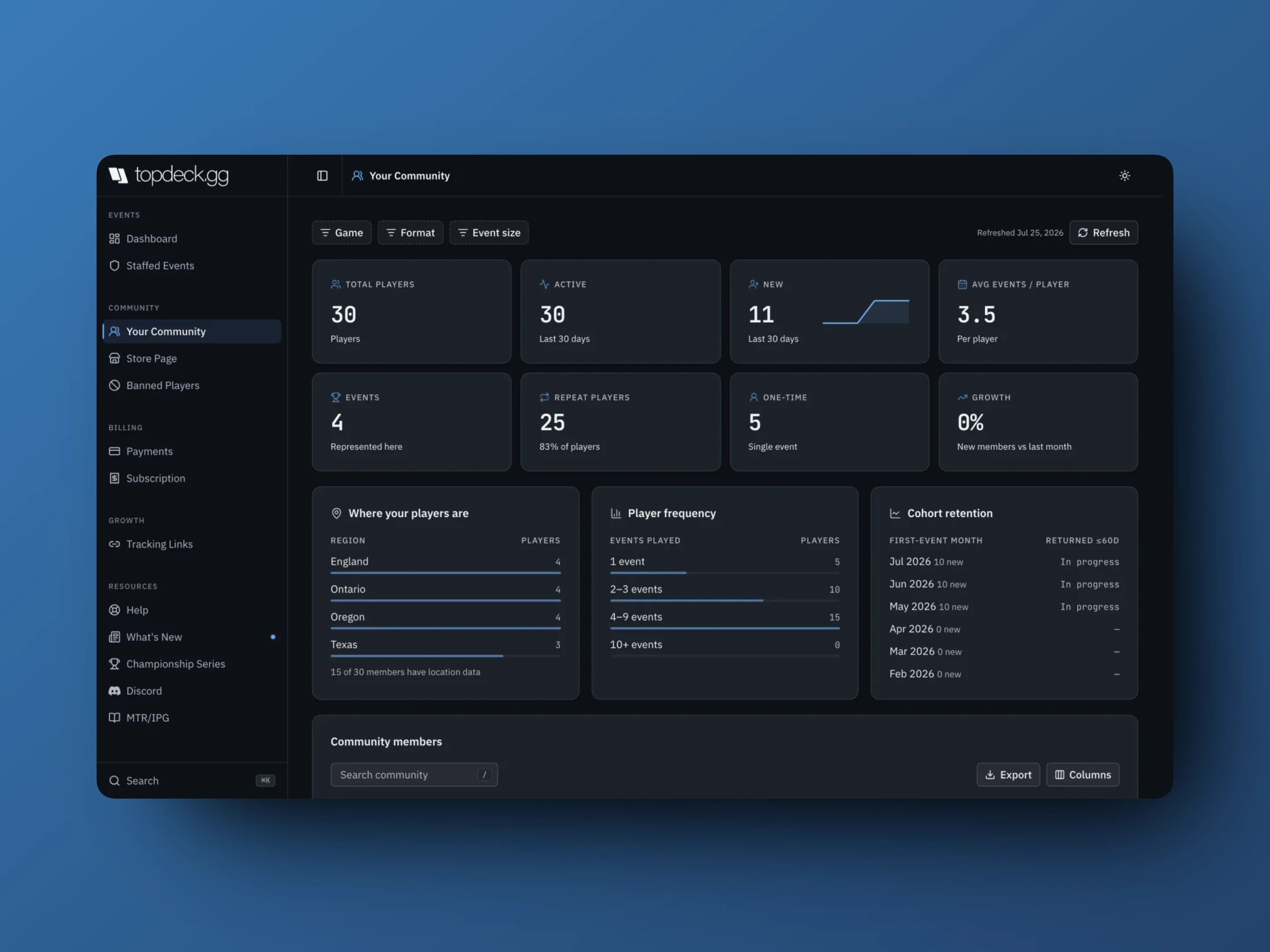
See Community and event analytics for what each measure means.
Store Page
Your public organization profile: cover image, logo, custom URL, description, venue, contact details, and social links. See Store page and public organization profile.
Banned Players
The organization-level registration block. An active ban stops that account registering for any of your events and stops staff adding them. See Banning players from your events.
Payments
Connect Stripe and PayPal, and check the current service fee and processing rates. Payment methods are switched on per event from that event's Event Page. See Payment processing.
Subscription
Opens the billing portal in a new tab.
Tracking Links
Campaign codes for an event or convention, with page views, registrations, and conversion rate per code. See Tracking links and registration attribution.
Resources
Links out to Help, What's New, the Championship Series, Discord, and the MTR/IPG addendum.
Search, theme, and mobile
Select Search in the sidebar or press ⌘K / Ctrl+K to jump to a section. The sun or moon button in the top bar switches the workspace between dark and light.
On a phone, the sidebar opens from the top bar and closes once you pick a section.