

An event with payments set up can sell more than one entry price. The Products section of the event workspace holds the catalog: entry tiers (ticket types), add-ons sold with registration, and discount codes. Orders land on the Orders page, and totals land in Analytics.
Products needs payments configured on the event and admin access. If you don't see it in the sidebar, connect a provider under organizer Payments, then enable that method under the event's Event Page → Pricing & payments.
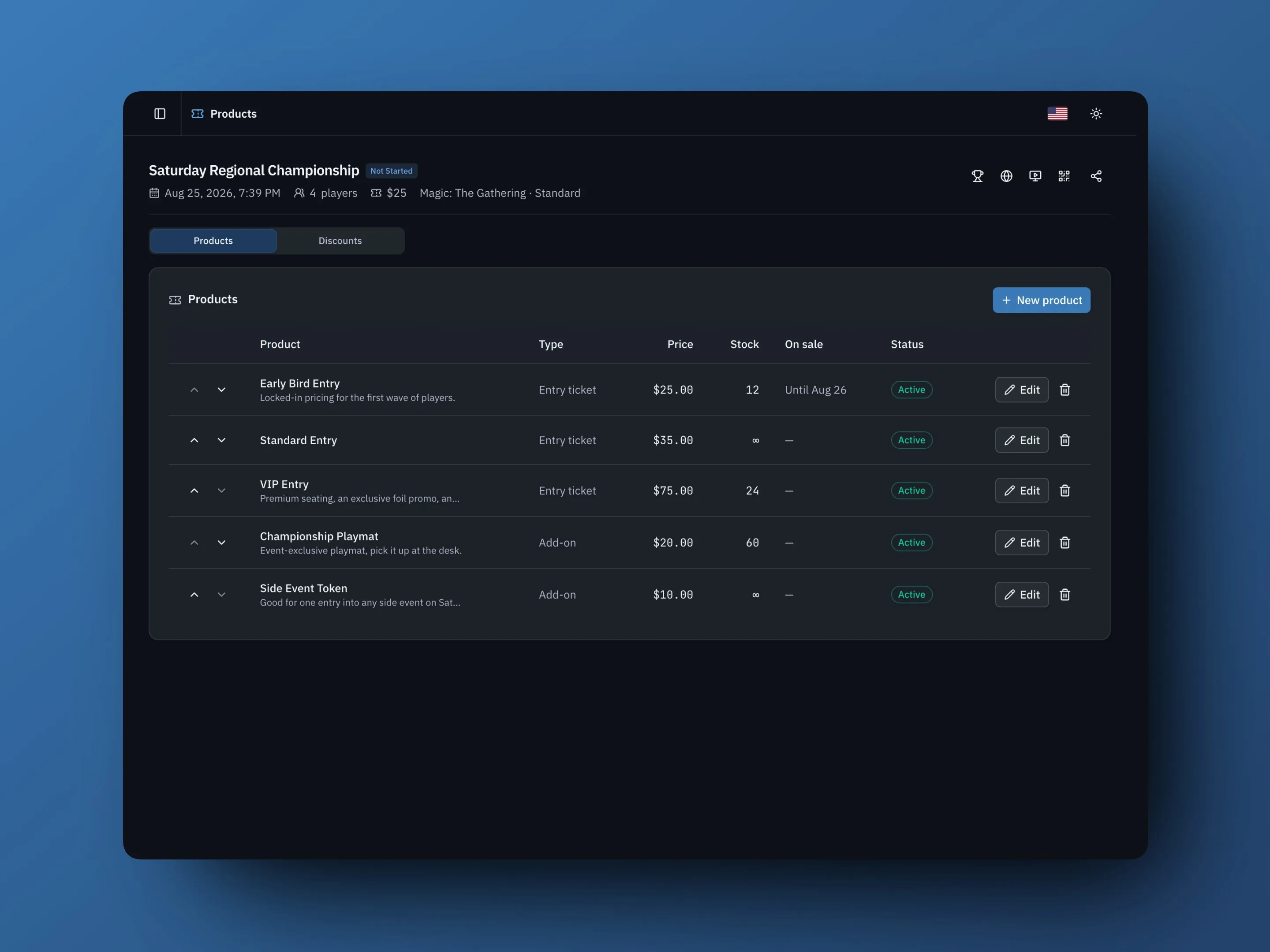
Entry tiers
A tier is a ticket type. Every order includes exactly one entry, so tiers are how you price registration — players pick one at checkout.
- Open the event and select Products.
- Select New product and set the type to Entry ticket.
- Name it, set the price, and save.
Optional per tier:
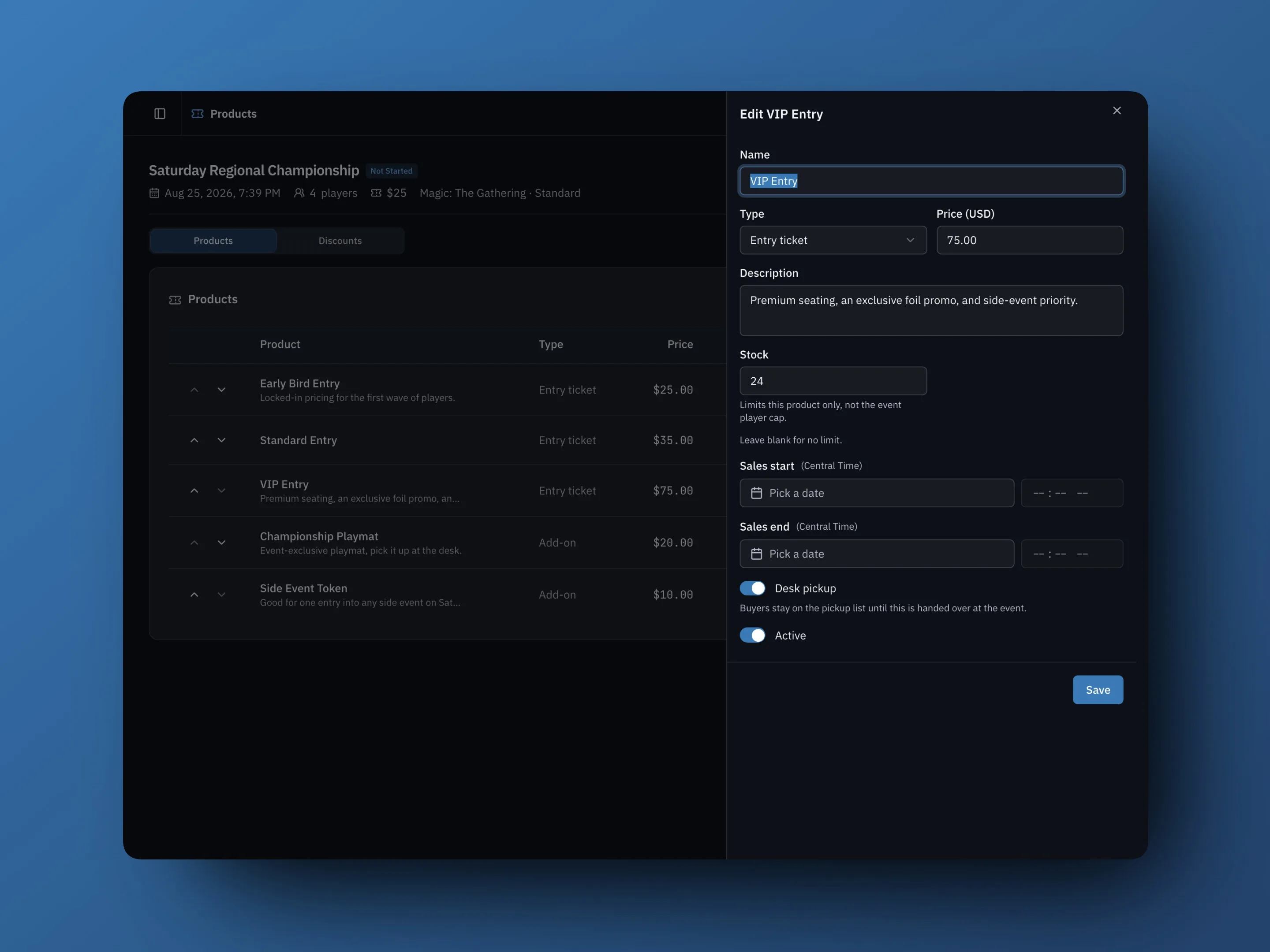
- Stock caps how many of that tier can sell. It limits the tier only — the event's player cap still governs total registrations.
- Sales start / Sales end open and close the tier on a schedule. An early bird tier is just a cheaper tier with a sales end date; it stops selling on its own.
- Description appears under the tier at checkout — say what VIP actually gets.
The event page advertises a "from" price when more than one active tier is offered. After a second entry tier is created, the Entry price field in the Event Page section becomes read-only — the catalog is the source of truth from then on. Deactivate a tier to stop selling it without deleting its order history.
Add-ons
Add-ons are items a player buys with their registration — playmats, dinners, side-event tokens. They share the registration payment, so there's one charge and one order.
Create them the same way with the type set to Add-on. Add-ons carry two extra controls:
- Per-order limit caps the quantity one player can buy.
- Desk pickup decides whether the item waits on the event's pickup list. Physical goods keep it on; digital items (a side-event credit, for example) turn it off and never appear at the desk.
Stock and sales windows work on add-ons the same way they do on tiers — use a sales end to close dinner orders when catering needs a final count, or a stock number to run a limited merch drop.
Players can only buy add-ons while registering. A player who is already registered can't come back for a playmat later — sell add-ons from the start, or handle late requests at the door.
Discount codes
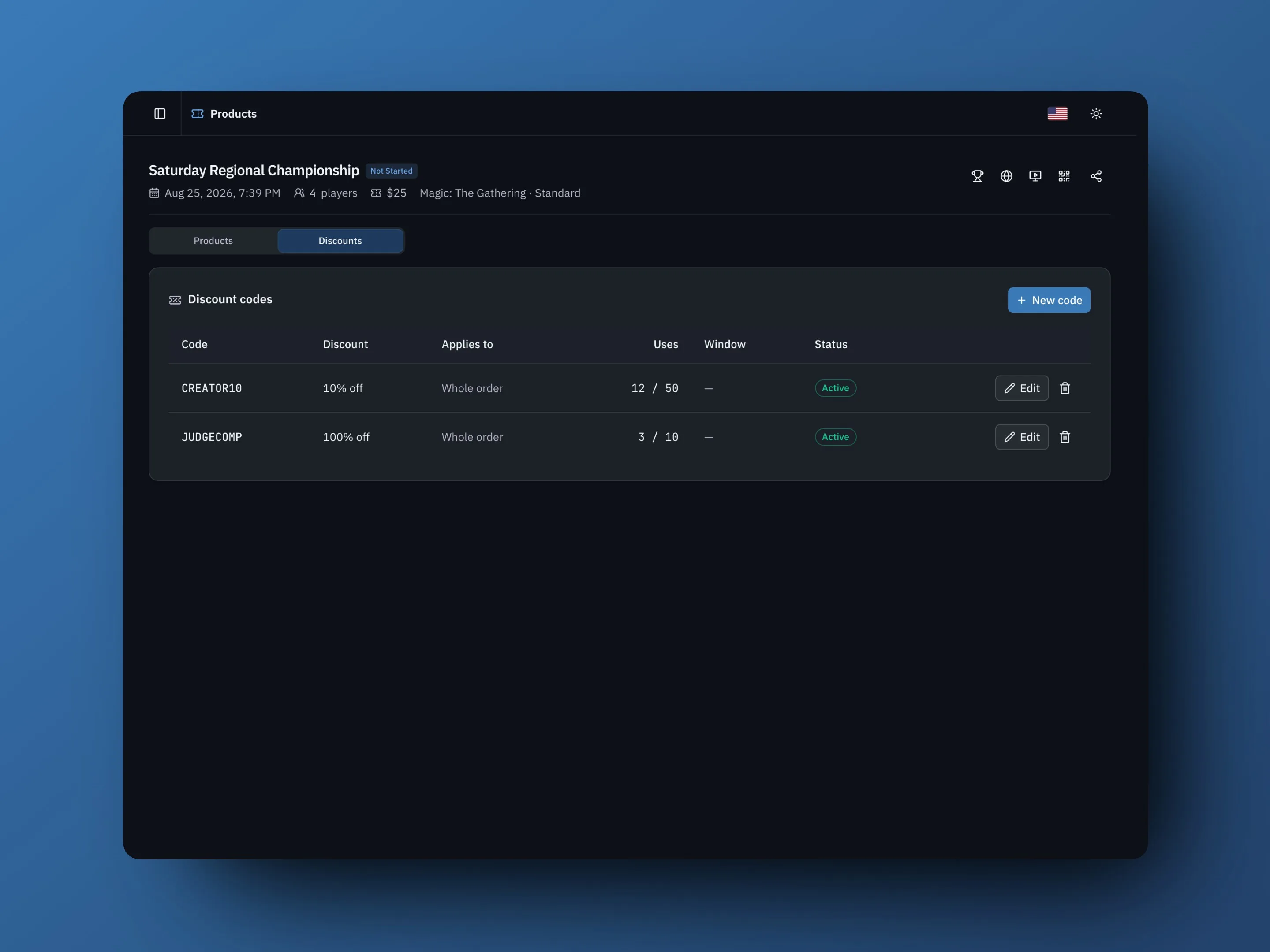
The Discounts tab holds the event's codes. A code is percent or fixed-amount off, with an optional usage cap and date window, applied to the whole order or to entry only (admission discounted, add-ons at full price). Each row shows completed, non-refunded uses against the cap. An open checkout reserves a use toward the cap, but it does not increment the Uses count until the order completes; a refund gives the use back.
Codes can also provide a purchase signal for campaigns. Give each promotion its own code — one for a content creator, one for the store counter, one for the Discord announcement — and the Uses column shows completed orders attributed to each code. Select a code to see its order list, including cancelled orders, and the event's Analytics page totals current uses and discounts.
Comps go through a 100% code: judges and guests register through the normal flow, pay nothing, and still get a real order and a roster spot. That keeps the door list clean — no special-casing at check-in.
What checkout looks like
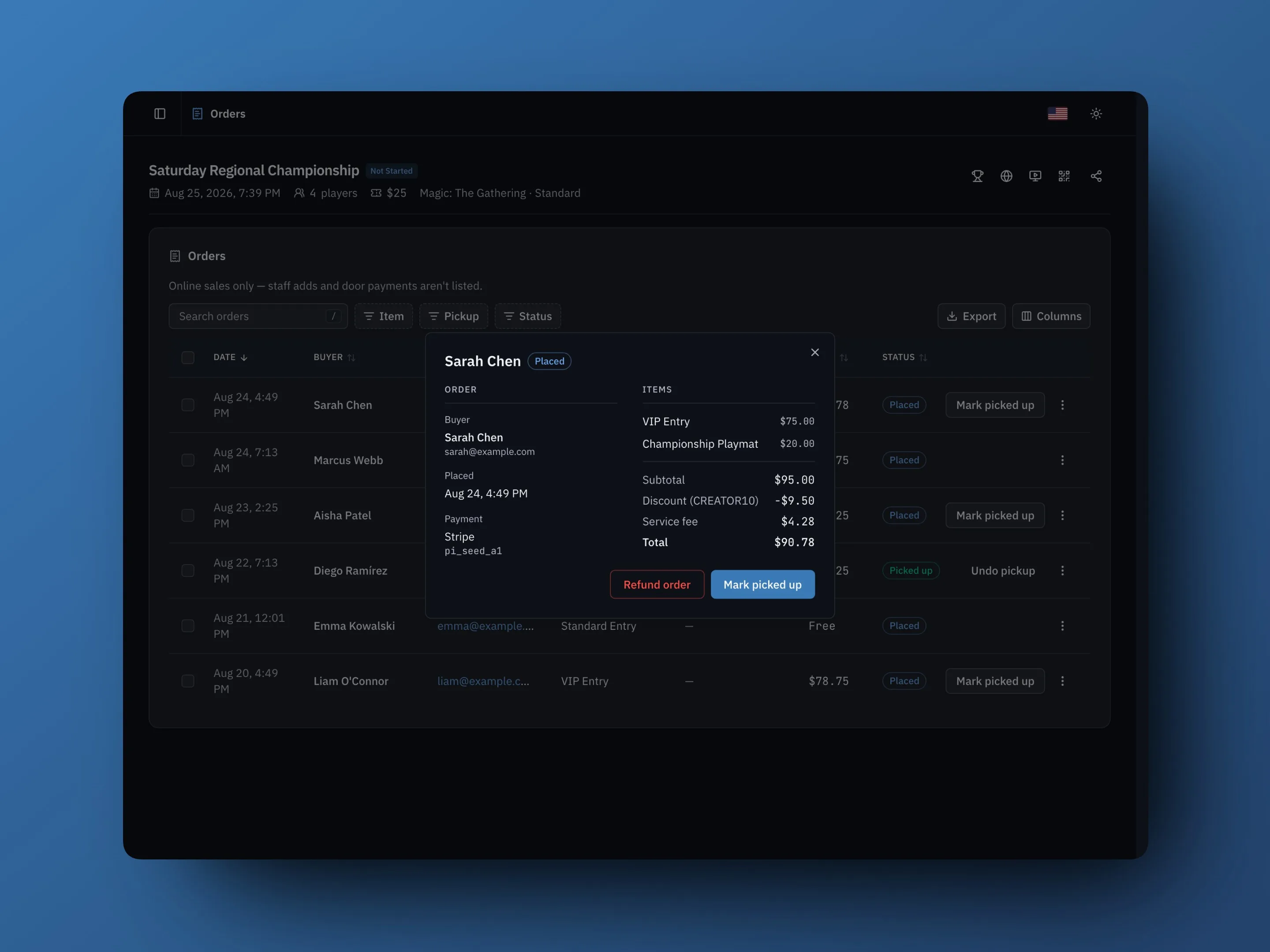
Registration opens a checkout listing your tiers with live availability — sold out, sales ended, or on sale later are all stated, never hidden. Add-ons follow with quantity steppers, and the code field applies with the discount shown as its own line. The summary itemizes entry, add-ons, discount, any buyer-paid service fee, and the total. Stripe or PayPal then shows one charge for that total, and the confirmation email repeats the itemized order.
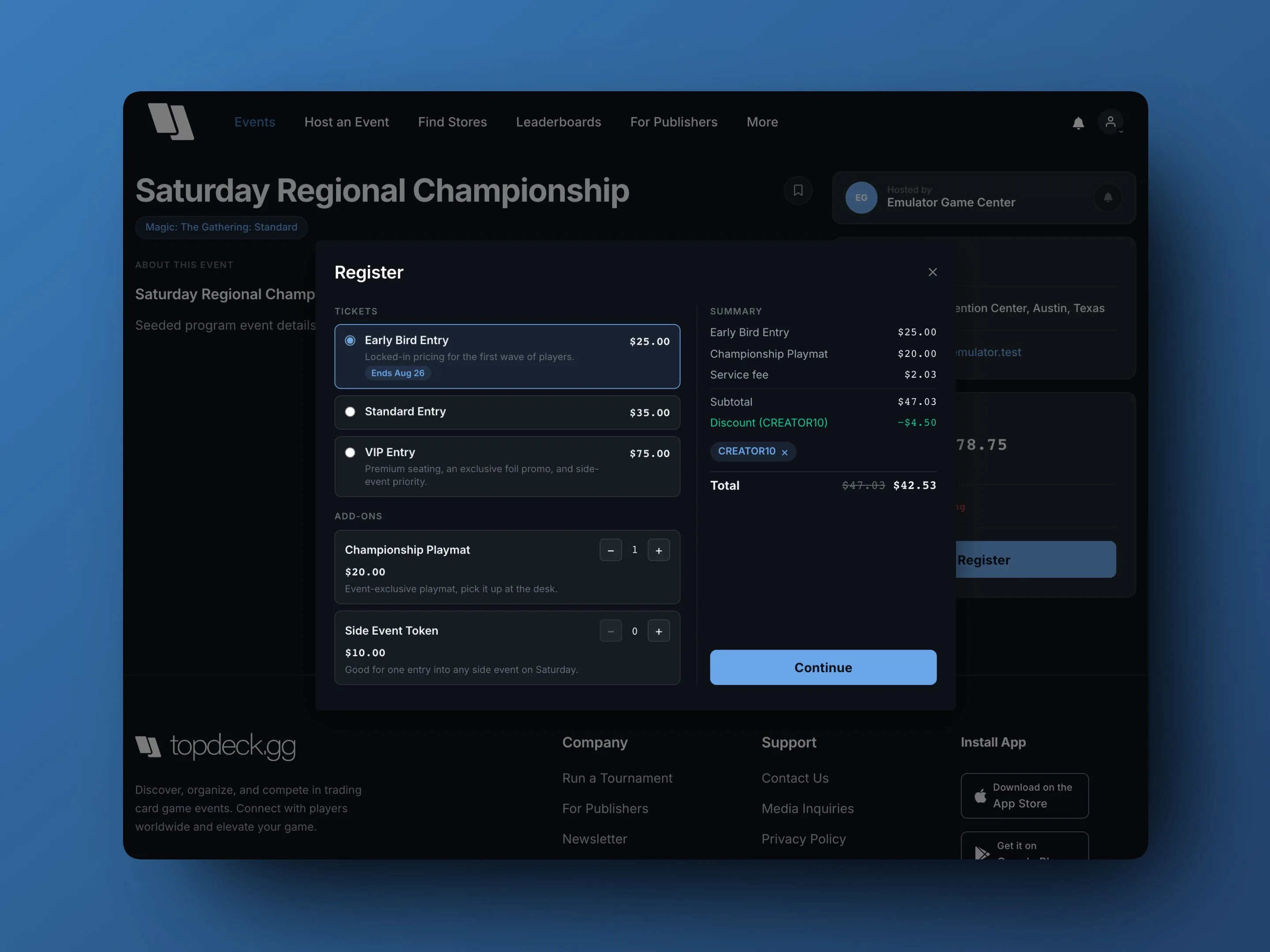
Prices come from the server-side catalog at charge time — what you configured is what's charged. During checkout, the player's seat, tier, and add-on stock are held briefly; abandoned checkouts release everything back for sale.
The website flow is available immediately. The same review flow is rolling out in the TopDeck app, with Apple Pay on supported iPhones, card entry, and PayPal according to the event's enabled methods. Google Pay is not included in this release.
The Orders page
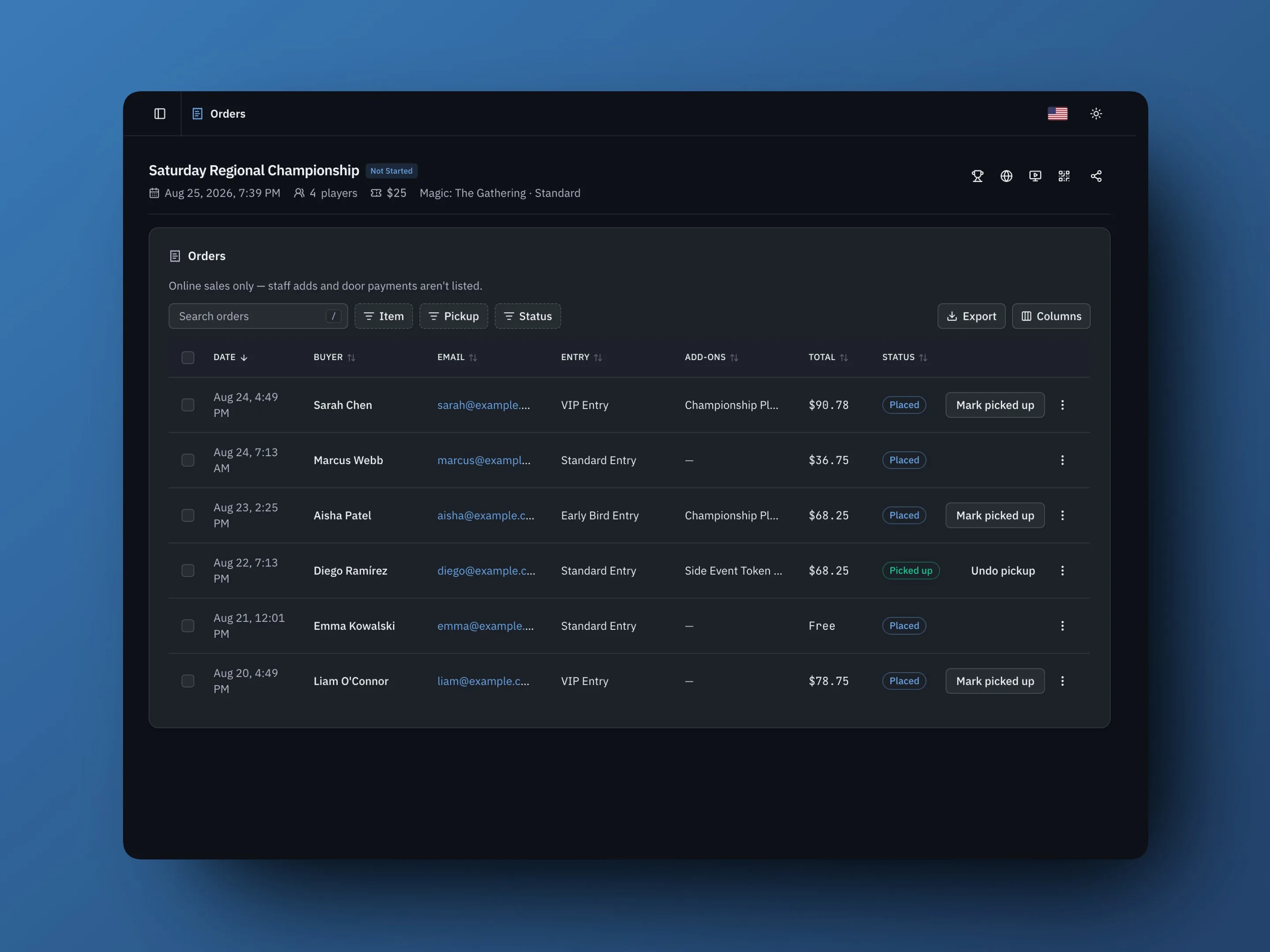
Orders lists every online order: buyer, items, total, and pickup status. It's the desk view during the event.
- The page opens on the complete online ledger. Use the Pickup filter and choose Needs pickup to focus on orders with at least one unfulfilled desk item.
- Mark picked up clears an order's desk items; select several rows to do it in bulk. Roster and check-in rows show an add-on chip so staff can spot a pending pickup mid-check-in.
- Marking pickups needs head judge or higher. Export needs scorekeeper or higher. Refunds and catalog edits stay with admins.
- Export downloads the online ledger as CSV.
Orders covers online sales only. Staff or API adds, door cash, off-site registration, and pay-later registrations don't create orders — the roster's paid tag is still the record for payments handled at the door.
Refunds
Opening an order shows its full record and the refund action. Refunds are whole-order: refunding cancels the order, returns the money — buyer-paid service fee included — restocks the items, and gives back the code use. The player remains registered unless the admin selects Also unenroll in the refund confirmation. There is no per-item refund; an order is fully paid or fully returned.
A fulfilled add-on blocks the player's self-service refund (they already have the playmat). Staff can still refund from the order.
Sales in Analytics
Once the event has catalog orders, Analytics reports online sales from the order ledger. Overall Revenue is the current organizer sales amount after discounts, refunds, and any absorbed TopDeck service fee, but before Stripe or PayPal processing fees. Product rows show current units and gross catalog value before discounts; code rows show current uses and discounted totals. Analytics needs a TopDeck subscription; the Orders page and its export do not.
Troubleshooting
Products isn't in the sidebar
The event has no payment method configured, or you're not an admin on the event. Connect Stripe or PayPal under organizer Payments, then enable that method under the event's Event Page → Pricing & payments.
A tier or add-on isn't showing at checkout
Check that it's Active, its sales window is open, and it has stock. Checkout states the reason a tier can't be bought — sold out and ended tiers stay visible with the reason attached.
A player wants to add an item after registering
Not supported online yet. Handle it at the door, or refund the order (whole-order) and have them re-register with the add-on if stock and timing allow.