

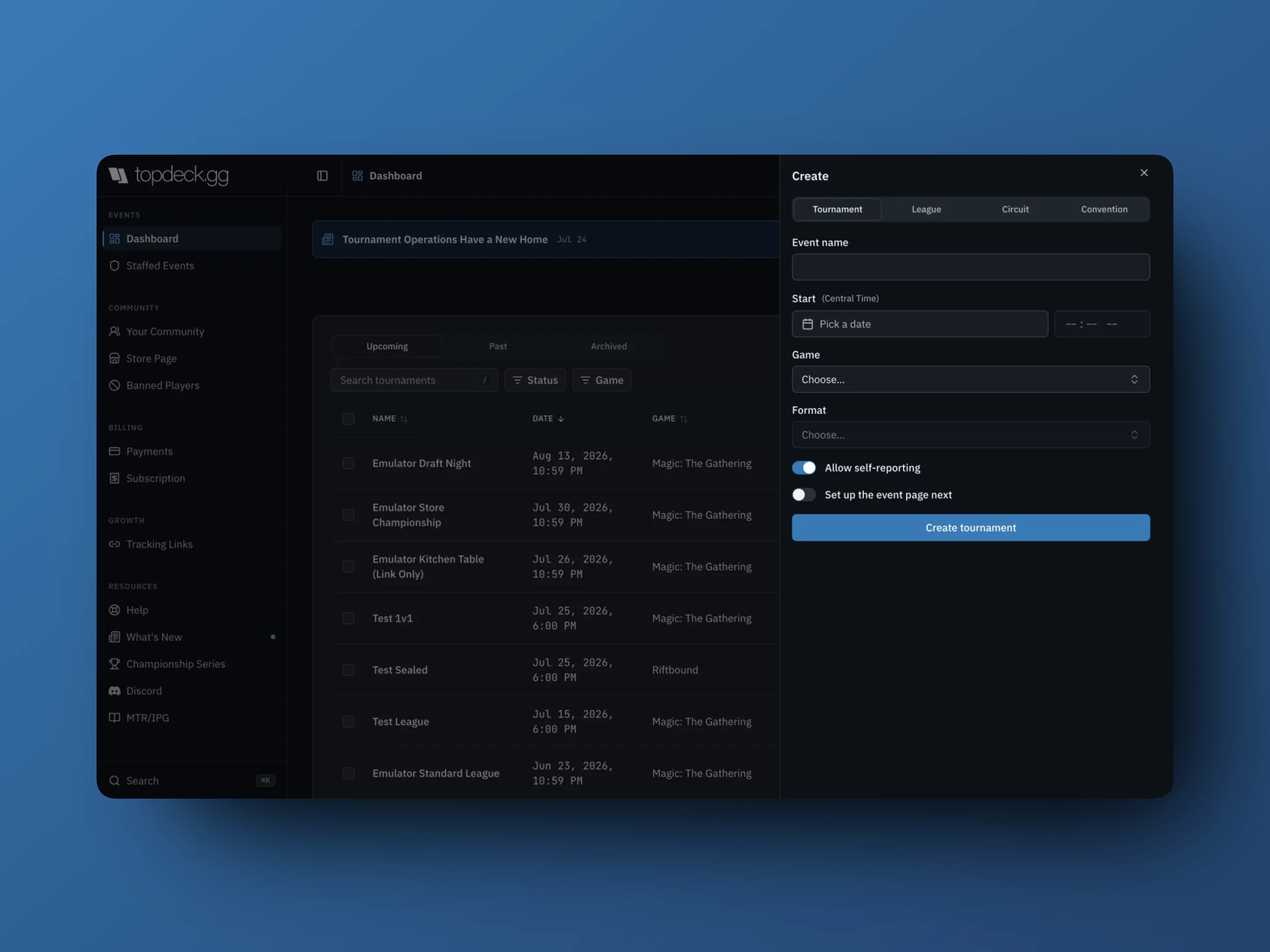
All four entity types come out of the same Create panel on the organizer Dashboard.
Which type do I want?
- Tournament runs synchronised rounds on one day. Swiss, pods, brackets.
- League lets players find their own games over a date range. No shared clock.
- Circuit is a points leaderboard built from the results of other events.
- Convention is a schedule of many events under one public program.
Circuits and conventions do not run games themselves. They organise events that do.
Create a tournament
- Dashboard → Create, Tournament tab.
- Event name, longer than three characters.
- Start date and time. The timezone beside the label is your device's.
- Game, then Format.
- Allow self-reporting, on by default.
- Set up the event page next, off by default.
- Create tournament.
With Set up the event page next on, you land in Event Page ready to add public details. Otherwise use Open on the confirmation, or pick the event off the Dashboard.
Creation writes only those five fields. Rules and scoring are set in Configuration; everything public is set in Event Page.
Create a league
Choose League when players arrange their own matches instead of playing synchronised rounds. The form asks for name, Start and End, game, and format. A league must have an end date.
Afterwards open Configuration to set the league pairing mode and Minimum Games Required, the number of games a player needs before they appear on standings. League games can be created manually or, where the format supports it, matched automatically through looking-for-game in the app.
Create a circuit or convention
Both ask for a name and a date range, then appear under Circuits & conventions on the Dashboard. Manage opens the program workspace.
Set a convention's Timezone in its Event Page before you build the schedule. Convention event times are anchored to that timezone, so a staff member in another zone types local venue time without converting it.
Next: Circuits, scoring, and leaderboards and Convention workspace.
Clone a recurring event
For weeklies and store programs, clone instead of rebuilding.
- Find the source event on the Dashboard.
- Open its ⋮ menu and select Clone.
- Set the new date.
- Open the clone before you share its link.
Always recheck the date, the registration cutoff, the decklist deadline, the price, and the staff list. Those are the settings that actually change between dates, and a cloned event's payment settings deserve a second look before registration opens.
Add an event to a circuit or convention
Open the program and go to Events. You can:
- Create new makes an event that belongs to this program
- Add existing searches your events, or takes a TopDeck.gg event ID
- Import CSV, conventions only, for a whole schedule at once
- Open manager on any attached event
Removing an event from a program does not delete it. The tournament and its data are kept.
Find events later
The Dashboard's Upcoming, Past, and Archived views, plus search and the Status and Game filters, cover most of it. Archive clears a finished event out of the way without deleting it.
If you host a lot of events, the Dashboard's Embed calendar action produces a calendar you can paste into your own website; it updates as your events change.
What is not done yet after creating
Creation neither publishes the event nor sets its rules. Before you share anything, open:
- Configuration for scoring, round length, tiebreakers, features, decklist deadline
- Event Page for public details, capacity, registration, price, payments, publish
- Staff for who else needs access
See Event configuration for the full settings guide.