Today we're rolling out a complete redesign of tournament operations on TopDeck.
This release touches nearly every part of an organizer's day: finding an event, getting players checked in, running rounds, handling judge work, editing the public event page, reviewing registrations, managing staff, and overseeing circuits or conventions.
The old tools grew one feature at a time. They could do a lot, but years of additions left important actions spread across tabs, dropdowns, separate pages, and pop-up windows. It was too easy to know that TopDeck could do something without knowing where that thing lived.
We rebuilt the tools around a simpler idea: your organization has a workspace, and each event has its own focused workspace inside it. Circuits and conventions follow the same pattern. The navigation stays familiar as you move between them, and each area shows the work that belongs there.
Your events and data are already in place. There is nothing to migrate and no new tournament format to learn. This update changes how you get around and how the tools are arranged.
Start with the organizer workspace
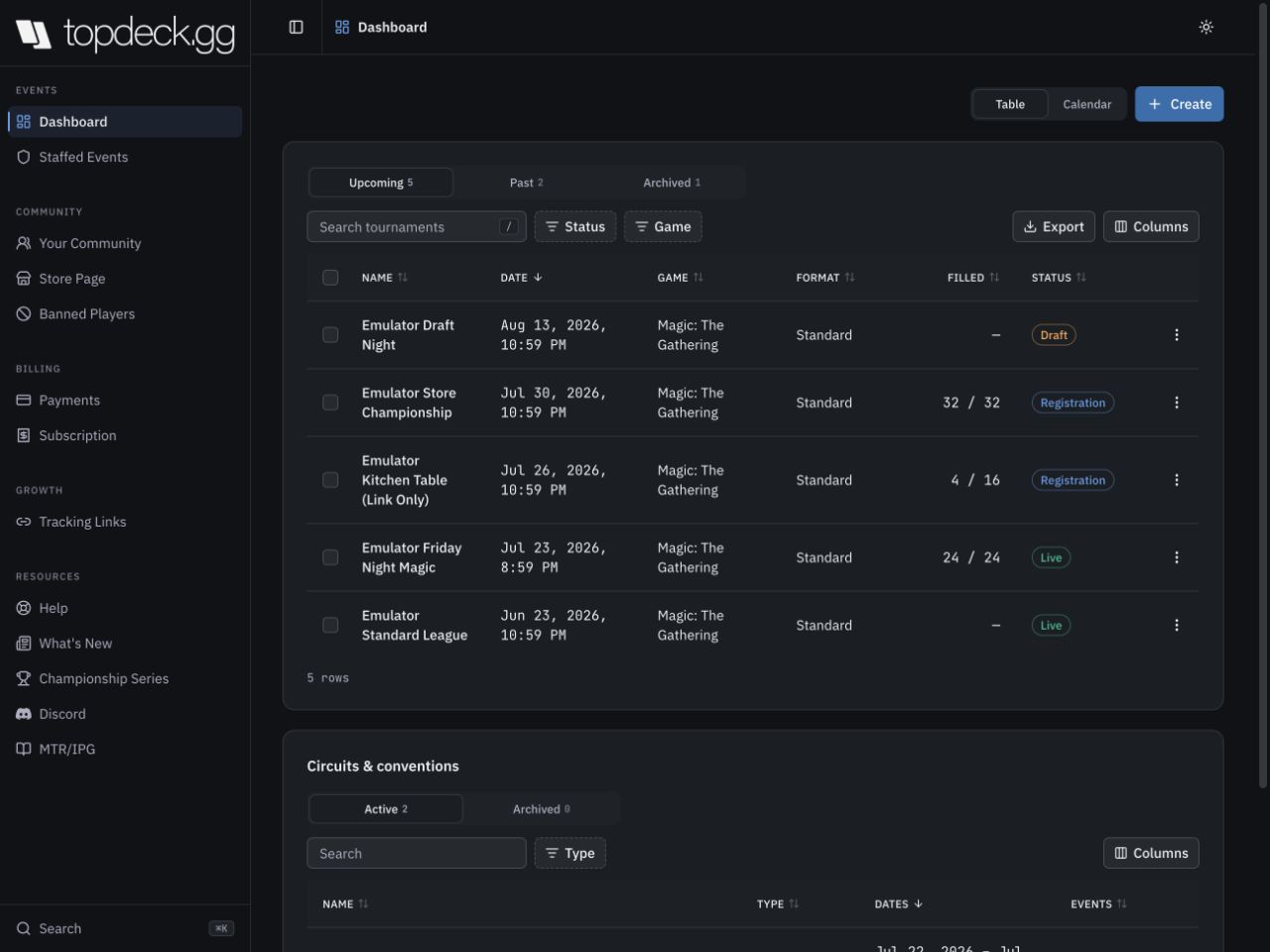
The Tournament Dashboard is now the home for your operation.
Your upcoming events appear first, with clear statuses for drafts, registration, and live play. Past and archived events have their own views, so they no longer compete for space with the tournaments you are preparing today. Search, game and status filters, saved column choices, and exports are available directly above the table.
You can switch between the table and a calendar. The table is best when you need to compare registration, format, or status across several events. The calendar is better for spotting a crowded weekend or checking how a series is spaced out.
You start anything new from the Create button. The same flow can create a tournament, league, circuit, or convention. For a normal tournament, enter the basic details and get moving. You can finish the public page, registration settings, scoring, and staff assignments from inside the event.
Circuits and conventions now appear on this dashboard too. They have their own list below your tournaments, which means you no longer need to remember a special route or search through a separate management page to find them.
The left side of the workspace is grouped by the kind of work you are doing:
- Events has your Dashboard and Staffed Events.
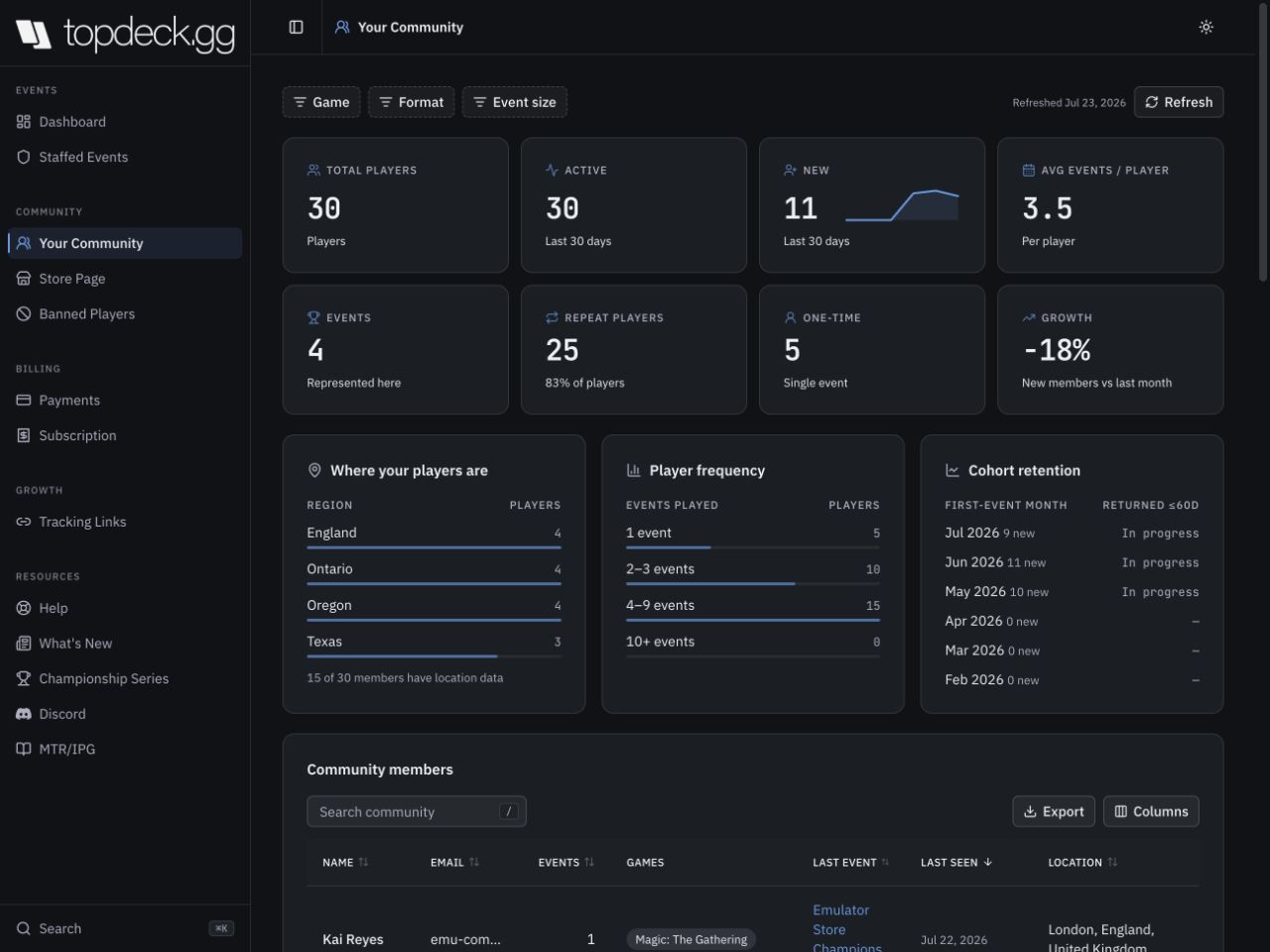
- Community has Your Community, Store Page, and Banned Players.
- Billing has payment setup and subscription management.
- Growth has Tracking Links.
- Resources keeps Help, What's New, Discord, the Championship Series, and the MTR/IPG close by.
If you are staffing someone else's event, open Staffed Events. It shows your role, the organizer, the event date, and the direct link into the event. Staffed Events remains available even if you do not have an organizer subscription, so judges and coverage staff still have a clear place to find their assignments.
Opening an event now feels like zooming in
Select an event from the Dashboard and the workspace changes from your whole organization to that tournament.
The event name, date, player count, game, format, and current status stay at the top. Links to the public bracket, event page, timer display, QR codes, and sharing tools sit beside them. During a live round, the current round and clock remain in the top bar even when you move to the Roster, Standings, or Judge Center.
The event navigation is organized into three working areas.
Players contains the Roster, Check-in, Waitlist, and Teams when the event uses teams.
Run contains Rounds, Standings, and Judge Center.
Event contains the Event Page, Analytics, Configuration, and Staff.
This replaces the old row of Manager tabs. Each area now has its own address, so you can bookmark a section, share a direct link with another staff member, or use the browser's Back button without losing where you were.
Clicking the TopDeck logo takes you back to the Tournament Dashboard. The Search button at the bottom of the sidebar, or ⌘K on a keyboard, can jump to a section, find an owned or staffed event, or open common actions such as adding players.
Where the old tools moved
Most organizers will recognize the jobs immediately, but a few names have been shortened.
Player Manager is now Roster.
Standings Manager is now Standings.
Round Manager and the old tournament controls are together under Rounds.
Penalties, Judge Calls, deck checks, table chat, and reports are together in the Judge Center.
Staff Manager is now Staff.
Public details, registration, pricing, and publishing are under Event Page.
Scoring, pairing rules, tiebreakers, and tournament settings are under Configuration.
The old event analytics pages now live inside each event under Analytics.
The old dashboard quick-edit screen is gone. It overlapped with the event page and tournament configuration, which made it possible to edit the same event in two places and see different options. Now the Event Page owns what players see, while Configuration owns how the tournament runs.
A roster built for the whole registration desk
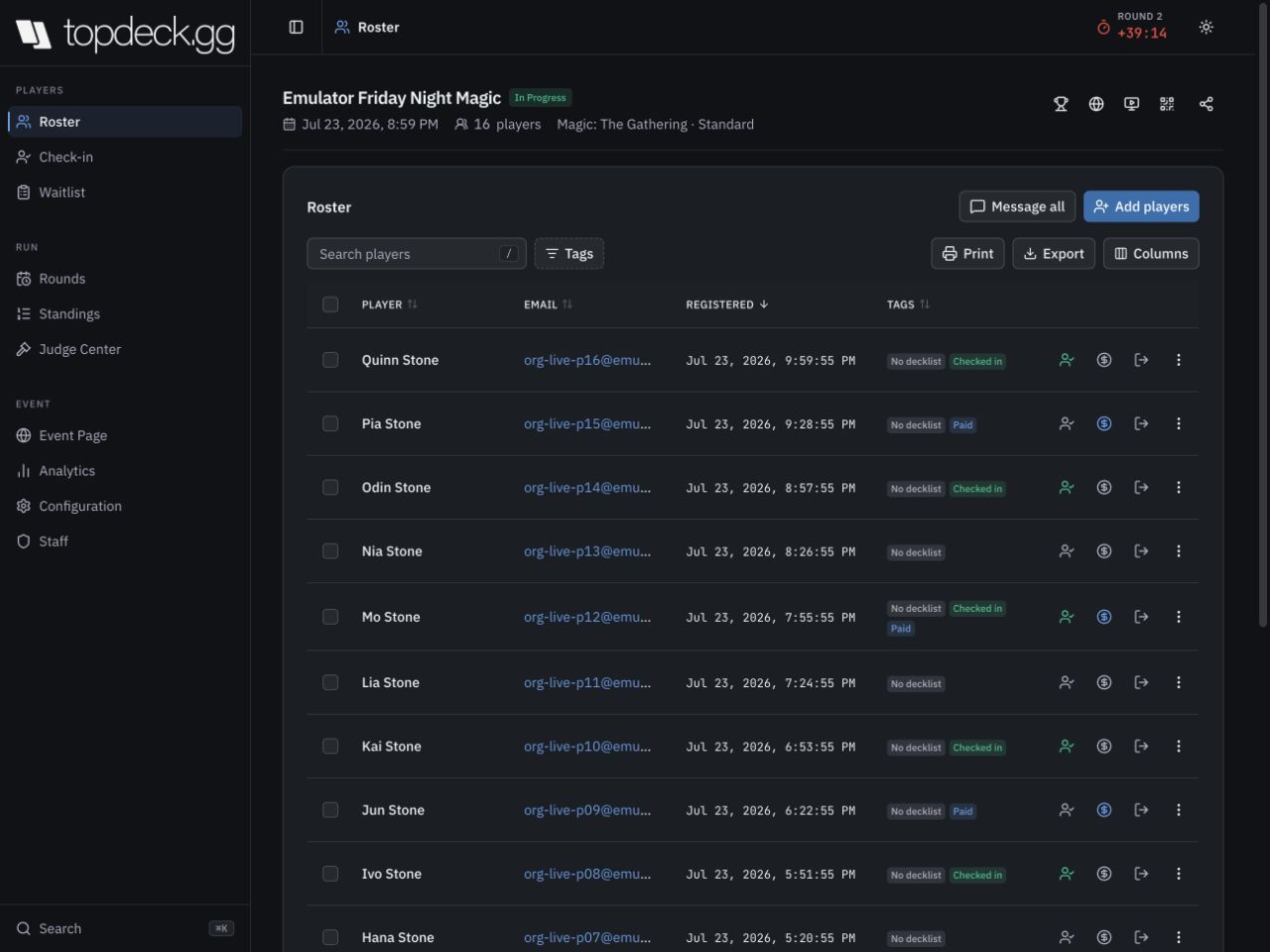
The Roster is the main player list, but it is no longer just a spreadsheet with an Actions menu.
Search is always visible. Tags can narrow the list to checked-in players, paid players, drops, manual entries, pending players, deck status, and other event-specific states. Columns can be hidden or rearranged, and the layout adapts when the screen gets smaller.
The actions used throughout the day are on the row. Check a player in, mark payment, drop or restore them, and open their decklist without digging through a menu. Less common work stays under the row menu: open player details, rename, send a message, issue a refund when available, or remove an entry before the event begins.
Open a player to see their match history, record, decklist, team information, and penalties in one place. You can move through those details without leaving the roster or losing your current search.
Add players now supports the way registration desks actually work. Search your community for known players, paste a list of email addresses, add walk-ins by name, or mix those methods in the same session. Pending invitations have their own panel with resend and approval controls instead of being mixed invisibly into the player count.
Select several rows to check players in, mark them paid, toggle drops, message them, or handle other eligible actions together. Reversible changes offer an Undo option, which is much faster than opening a confirmation window for every correction.
Check-in and waitlists have their own desks
Check-in is now separate from the general roster because it has a different job.
The page shows exactly how many expected players are checked in and who is still missing. Staff can search by name, email, or check-in code. A camera scanner can read player credentials at the door, and every scan returns a clear result so staff know whether the player was checked in, already checked in, or could not be found.
Self check-in can be opened and closed from the same page. Before the first pairing, TopDeck warns you if players are still unchecked, invitations are pending, or a team is incomplete. You can return to the right page to fix the issue, or continue when the room is ready. Dropping all no-shows requires a deliberate confirmation and shows what is about to happen.
The Waitlist has also become a real queue. Players have a visible position and status. You can send an offer, watch its expiration countdown, offer several eligible spots at once, and move accepted players into the roster. The controls follow the state of each entry, so an expired offer and a player who has already moved do not present the same choices.
For team events, Teams shows complete and incomplete rosters, captains, assigned formats, and unassigned players. Staff can build teams, move players between them, promote a captain, fill open seats, or auto-assign the remaining field. Fixed-seat events can give each seat its own format, and the team stays marked incomplete until every required seat is covered.
The round runner is built around the room
Rounds received the deepest redesign in this release.
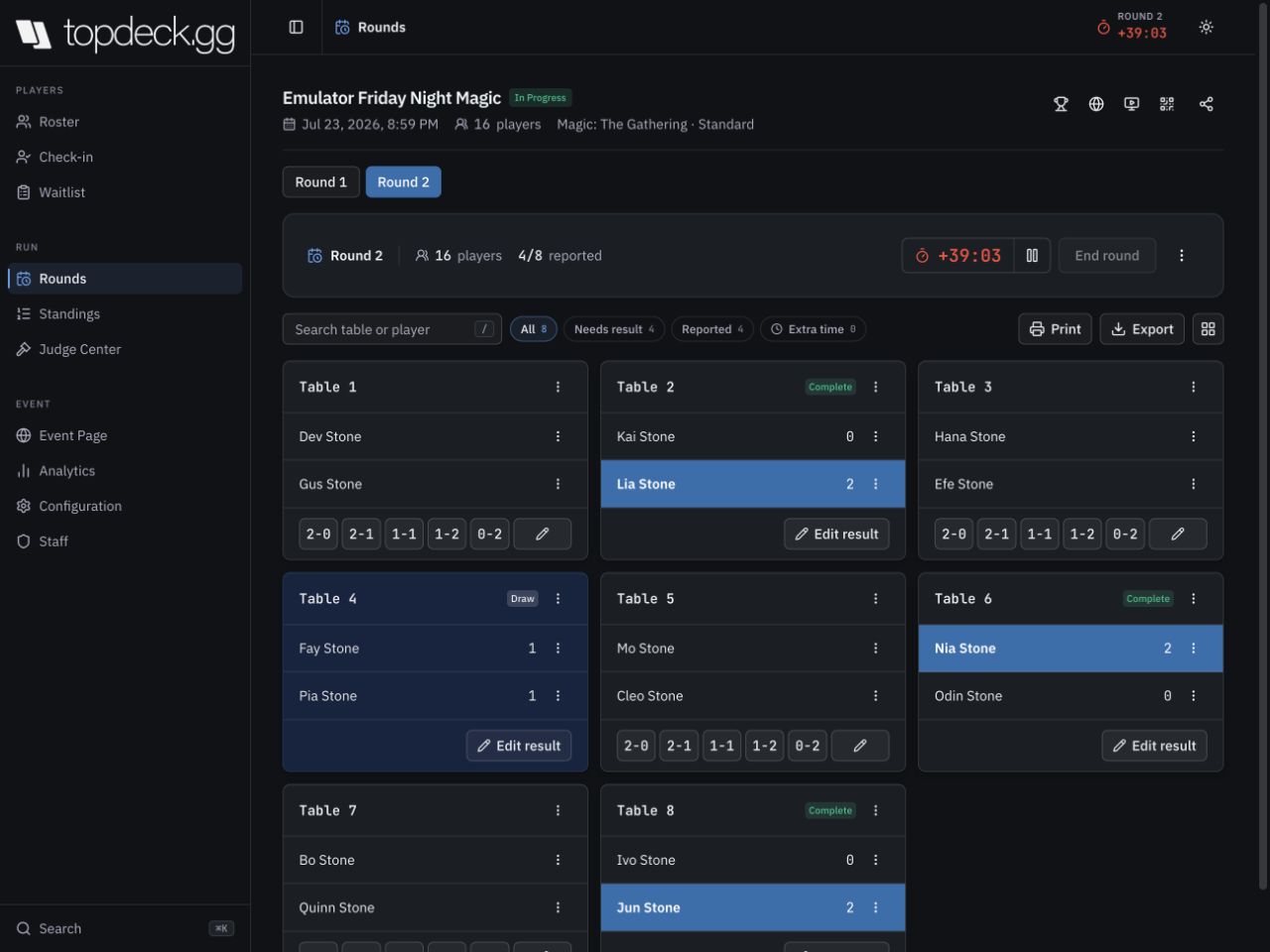
The current round has a single control bar with the player count, reported-table count, clock, pause control, and the action that moves the event forward. The same area handles starting a round, publishing pairings, ending the round, making a top cut, ending the tournament, or reopening it when a correction is needed.
Below that, table cards stay in their physical order as results arrive. Completed tables do not jump away while you are looking at the room. Their color and status change in place, which makes it much easier to compare TopDeck with what you can see on the floor.
Search for a player or table, then filter to all tables, tables that still need a result, reported tables, or tables with extra time. Switch to a compact grid when you need a room-wide status check.
For normal head-to-head rounds, the common results are one click away. Longer matches and unusual scores use a custom result window. Pods, score-based events, shared-game teams, and format-per-seat teams show the controls that make sense for that event instead of forcing every tournament through the same win/loss form.
Every table has a menu for corrections and floor work. Staff can reset a result, add time, issue a game loss, open table chat, break a table when the format allows it, or reach the relevant player actions. Reported tables are protected while pairings are being edited; reset the result first if the pairing itself needs to change.
Round history stays available. Open an earlier round to review pairings or print it again. Results remain protected, while authorized staff can still repair a missed bye or table assignment without deleting everything that happened afterward.
Printing is grouped by what you want to put on paper: match slips, seating sheets, standings, and other event documents. Exports remain separate for data files. Pairings can also be imported when an outside system or publisher provides them.
Keyboard entry is available for scorekeepers who would rather keep their hands off the mouse. The card layout still works for a judge on a phone or tablet, so the same round can be managed from the stage, scorekeeper station, or floor.
The redesign covers more than Swiss rounds. Single-elimination brackets, top cuts with byes, round robin, pods, points-based events, pools, drafts, leagues with player-arranged games, and team formats all have dedicated views and controls. The page changes with the tournament instead of exposing a pile of options that do not apply.
Standings and judge work stay close to the round
Standings are live and searchable, with records, tiebreakers, drops, deck checks, and other event states shown in the table. You can review standings after a specific round, not only the latest snapshot. Open a player from the standings to see their match history and event details.
Selection tools cover common scorekeeper work: message a group of players, toggle drops, add or remove deck checks, and export the current field. Dropped players remain visible at the bottom with their true finishing position, rather than disappearing or being renumbered by a sort.
The Judge Center brings together work that used to be split across several tabs.
When judge calls are enabled, staff can see the open queue, claim a call, escalate it, open the table conversation, and resolve it. Calls show how long they have been waiting. Penalties record the player, severity, staff member, and round. Deck checks are ordered around the tables judges are walking. If event chat is enabled, table conversations and player reports are available in the same area.
Roles now shape both navigation and actions. Coverage staff can read the live event surfaces. Judges receive floor tools. Head judges and scorekeepers see the desks and controls their jobs require. Admins and owners keep event-wide configuration, analytics, and staff management. If your role does not include an action, the interface does not advertise it and then fail after you click.
Event pages can be edited where they belong
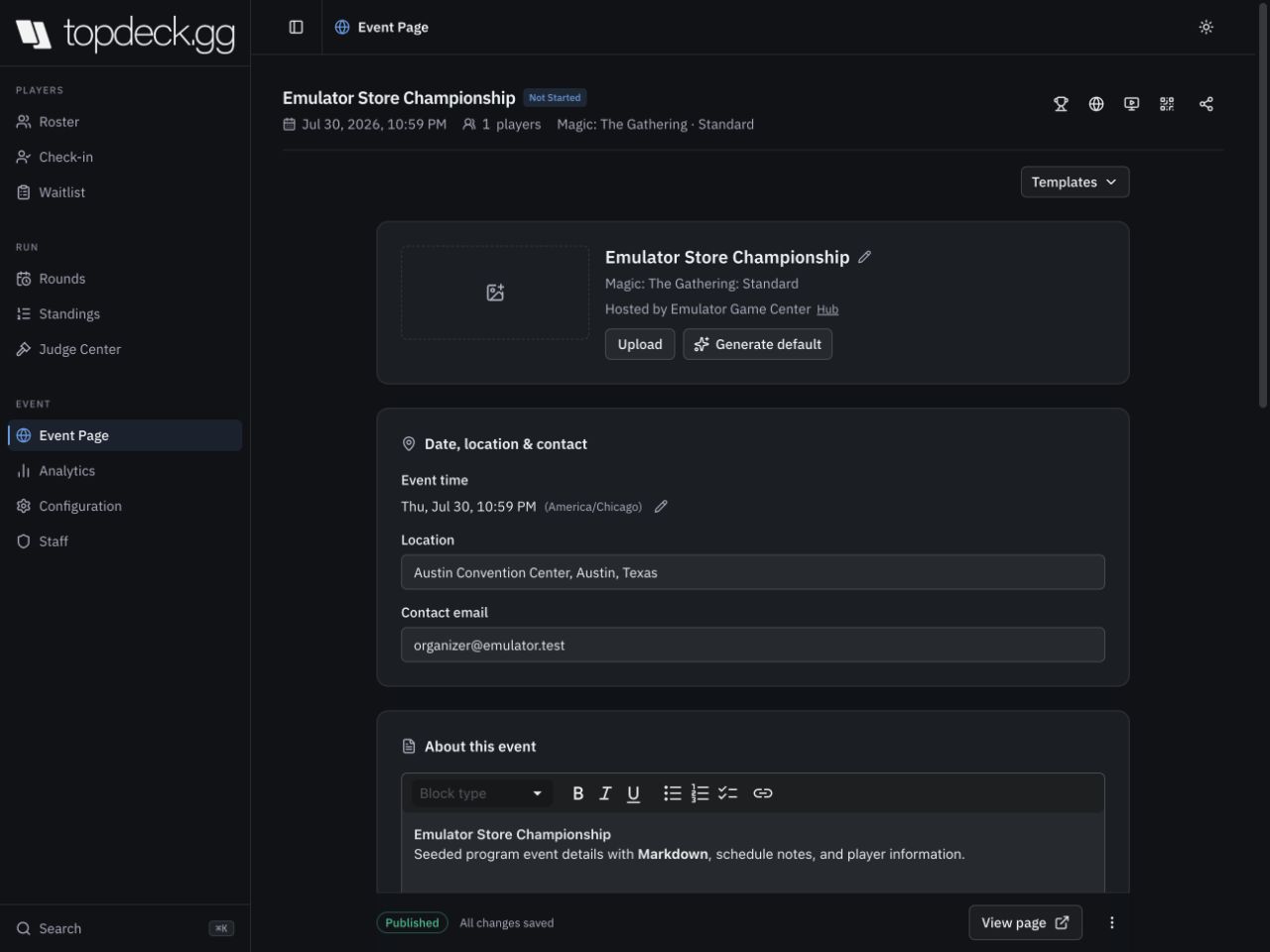
The Event Page is a single place for the page players will read and use.
Add or generate a header image, edit the event description with a normal formatting toolbar, update the location and contact information, set registration capacity and cutoff, choose payment options, add social links, and control publication from the same page.
The save bar stays visible while you work. It tells you whether the page is published and whether your latest changes are saved. Preview and View Page are available without leaving the editor. Templates can fill in a useful starting point for common event types.
Some facts, such as the event name and start time, belong to the tournament itself. When one of those appears on the Event Page, the edit shortcut takes you directly to the matching setting in Configuration. This keeps the public page and tournament operation from disagreeing.
Configuration is now focused on the rules of play: name and schedule, game and format, scoring, round time, best-of settings, tiebreakers, table layout, deck submission, team settings, league settings, and advanced tournament options.
Changes are reviewed and saved together. Dangerous actions, such as clearing tournament history, are kept in a clearly marked area and require stronger confirmation. Routine settings no longer sit next to destructive controls.
Analytics belongs inside the event now. Registration totals, revenue, orders, player sources, locations, and hourly activity are tied directly to the event you are managing. The old separate analytics hub has been retired; open the event and choose Analytics.
Your community, store, payments, and growth tools share the workspace
The redesign also covers the work between events.
Your Community shows the people who have played in your events, how often they return, where they are located when that information is available, and how participation is changing. Filters for game, format, and event size update the overview and player list together. You can open a player's profile or jump from their history straight into the related event.
Store Page manages your public organizer identity, contact details, branding, location, and page address. A built-in preview shows the desktop, tablet, and phone layouts before you save.
Banned Players can search your community or accept pasted player details. Existing bans are searchable and exportable, and removals offer an Undo path.
Payments shows Stripe and PayPal separately, with a clear connection state, missing requirements, and a fee calculator. Tracking Links shows visits, registrations, conversion rate, associated event, and tags. Links can be created, copied, edited, or retired without leaving the table.
Circuits and conventions now use the same language
Private circuit and convention management has been redesigned to match the organizer and event workspaces.
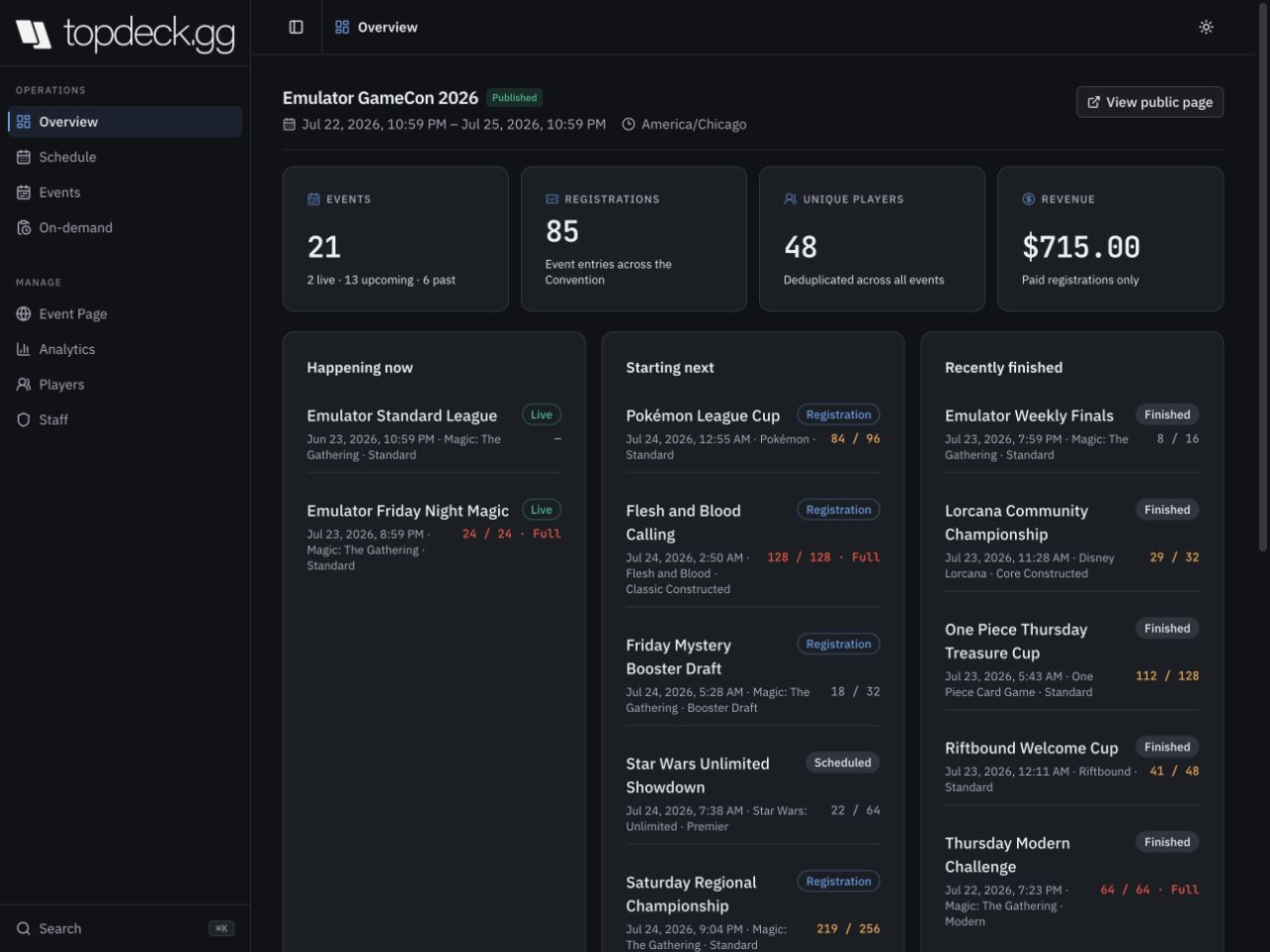
A Convention opens to an overview of what is happening now, what starts next, what recently finished, current registrations, unique players, revenue, capacity warnings, and events whose schedule or public page needs attention. From there, the Schedule, Events, Players, Analytics, Event Page, and Staff sections cover the rest of the operation.
The schedule understands the convention's local time. The Events section tracks registration and capacity across the program, supports headliners, and can add existing tournaments or create new ones. Player and analytics views combine the convention's events so you can answer questions about the whole weekend without opening tournaments one at a time. Staff can be assigned at the convention level and to individual events.
A Circuit has dedicated areas for scoring, events, the leaderboard, its public Circuit Page, and staff. Scoring structures can award points for placement, standings metrics, or game score, with attendance rules, best-result limits, overlap rules, and qualification criteria. Individual events can receive custom point rules when a championship or invitational should count differently.
The leaderboard supports search, qualification status, exports, manual adjustments with a reason, and adding qualified players to a follow-up event. Circuit staff see the areas their role allows, using the same navigation pattern as the rest of TopDeck.
Better on smaller screens, and safer when the connection is not
The full workspace adapts to phones and tablets. The sidebar becomes a menu, tables become readable cards when necessary, and actions remain labeled for touch. This is especially useful for check-in and floor judging, where a laptop is often in the wrong place.
During an event, a lost connection no longer has to stop the room. The tournament manager shows that it is offline, keeps accepted event actions in order, and syncs them when the connection returns. If something cannot sync, it remains visible with Retry and Discard choices. Staff are never asked to assume that a click probably made it to the server.
What has not changed
Your tournament links, event IDs, players, rounds, standings, staff, and public pages remain in place. Existing events open in the new manager. The public bracket, player registration flow, timer display, and player-facing event pages continue to work.
The tournament rules underneath the interface have not been replaced. A Swiss event is still the same Swiss event, and your existing scoring and tiebreaker settings still apply. We changed the workspace around those rules, not the history of your events.
A quick walkthrough for your next event
Start on Dashboard and choose Create. Enter the basic tournament details, then open the new event.
Use Event Page for the public description, location, registration, pricing, and publishing. Use Configuration for scoring, round settings, deck requirements, teams, or league options. Add staff under Staff.
As registration comes in, use Roster for player records and Waitlist for capacity. On event day, open Check-in and scan or search players as they arrive.
When the room is ready, go to Rounds. Review any readiness warnings, create and publish the pairing, start the clock, and enter results on the table cards. Judges can work from Judge Center while the scorekeeper watches the reported count. Use Standings between rounds or whenever players need an update.
After the final round, finish the tournament from the Rounds control bar. Final standings and event analytics remain available, and the event can be moved out of the active Dashboard view when you are done with it.
Common questions
Do I need to recreate my events?
No. Existing events and their data open in the new workspace.
Where did the old Manager tabs go?
They became the Players, Run, and Event groups in the event sidebar. The mapping above covers the renamed sections.
Where do I edit an event now?
Use Event Page for what players see and Configuration for how the tournament runs. The old Dashboard quick-edit screen has been removed.
Where is Event Analytics?
Open the tournament and choose Analytics in the Event group.
How do I return to all my events?
Click the TopDeck logo in the upper-left corner.
Can I still use TopDeck on my phone?
Yes. The organizer, event, circuit, and convention workspaces all adapt to smaller screens.
Will staff see controls they cannot use?
Navigation and actions follow each person's role. A judge, scorekeeper, coverage member, admin, and owner can have different views of the same event.
What if I cannot find a page?
Use Search at the bottom of the sidebar or press ⌘K. Search includes sections, common actions, and events you own or staff.
This is a large change, and there is a lot here. The best way to get comfortable is to open an existing event and click through the new sidebar before your next tournament starts. Nothing in that tour changes your event unless you choose an action or save a setting.
Questions or feedback? Reach out at [email protected] or join our Discord.
Zain
The TopDeck.gg Team